Forum Discussion

ingezwetsloot
Aug 15, 2024Copper Contributor
Count unique values including specific character
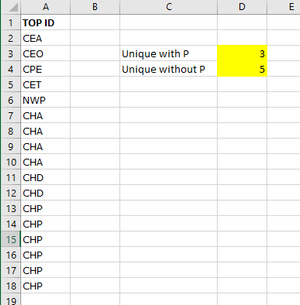
Hi, please help... Which formula can I use to create the numbers in yellow? From column A I would like to count the unique values containing a "P" Thank you already for helping!

SaniGarba
Aug 15, 2024Brass Contributor
I am sure there will be more elegant solutions out there, but this is mine:
Create additional column B. It's ideal to turn the data into a table. In column B, which I call P VALUE, enter this formula: =LEN([@[TOP ID]]) - LEN(SUBSTITUTE([@[TOP ID]], "P","")). It will calculate the number of characters of each word (x), then calculate the number of characters that do not include "P" (y). Wherever x = y you get 0, else 1 indicating presence of "P". Now in say, Cell D, use the UNIQUE array formula on the entire table. This will give you two columns of 8 unique values.
Then, in any two adjacent columns, for UNIQUE WITH P use the COUNTIF on the second column as follows: =COUNTIF(E2:E9,1) you will get 3; for UNIQUE WITHOUT P enter =COUNTIF(E2:E9,0) you will get 5.
Create additional column B. It's ideal to turn the data into a table. In column B, which I call P VALUE, enter this formula: =LEN([@[TOP ID]]) - LEN(SUBSTITUTE([@[TOP ID]], "P","")). It will calculate the number of characters of each word (x), then calculate the number of characters that do not include "P" (y). Wherever x = y you get 0, else 1 indicating presence of "P". Now in say, Cell D, use the UNIQUE array formula on the entire table. This will give you two columns of 8 unique values.
Then, in any two adjacent columns, for UNIQUE WITH P use the COUNTIF on the second column as follows: =COUNTIF(E2:E9,1) you will get 3; for UNIQUE WITHOUT P enter =COUNTIF(E2:E9,0) you will get 5.