Forum Discussion

Pull in multiple rows of data from a single input
- Dec 12, 2022
The Google Sheet was "View only," but fortunately it does permit downloading to Excel, so I did that and edited in in Excel. I've attached what I am guessing to be what you would like to do. But it's a guess.
A couple of observations: the primary one being that you've made what I consider to be a mistake, in that you've paid a lot of attention to making things "look sexy" when you haven't yet figured out the basic functionality. And that very effort--focus on appearance--can get in the way of functionality. So as a general rule in design, I suggest you concentrate on making it work first; then look to the "looks" of it.
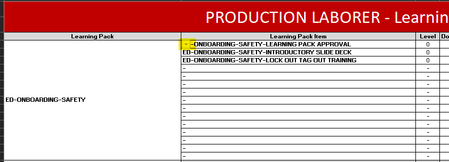
- What I have in mind, first, is the merging of cells in column B of your Data sheet. To the human eye, it absolutely looks clearer, neater, when the higher level name only appears once; but to a database, it's actually more accurate when that higher level category is on each row to which it applies. (A general rule for good database design is to avoid merging cells; this is not just my personal idea--I've read in various professional articles the same warning or advice; merged cells can look good, but they can create problems, especially when used in a database. It is different when we're talking of the "output" or report end of things.)
- Related to that first point: an effectively designed database does NOT have empty rows. All that does is take up space.
- Having a single column that contains the higher level attributed, and then only one row for each secondary level that exists, enables you to then add new rows to (for example) the "BORING PACK" category in any row. The "Boring Pack" entries don't all have to be in contiguous rows.
- So, for example, you'll see I've added several individual items--"out of order"--yet they appear where needed on the output sheet.
A related suggestion would be that--especially if you're going potentially to be adding items in greater quantity--you might be better off doing the extraction on separate pages for each category. [In this existing workbook, for example, if you were to create more than 15 "learning Pack Items" under the category of "Boring" you'd be running into a #SPILL problem when it hits the first of the Fun Pack rows.
You might want to consider creating a single "dashboard" sheet where you specify the category and then extract the relevant items. Depends really on your objective with this. If it's to track individual completions of courses, for example, that would dictate one kind of design, whereas if your objective is to catalog all courses, .....

Is it possible for you (without violating company confidentiality) to post a copy of the actual workbook on OneDrive or GoogleDrive? Then post a link here that grants access and editing privileges to that shared file.
I ask because I strongly suspect that there IS a far simpler way to do this--as you seem to suspect as well--but I'm having a hard time visualizing what your Data! sheet/table looks like. Certainly one concern I'd have, and you should have as well, is that you appear to be "hard coding" in some references to regions on that Data! sheet to some sub-categories of Learning Packs, and (as a former corporate trainer myself) I can well imagine those regions growing and contracting over time, so hard-coding like that is going to create problems as Learning modules/Packs in a particular category increase or decline in number.
It would be far easier to help, though, if we could see the full deal, rather than a couple of selected images.
If the full sheet is or needs to remain confidential, perhaps an abbreviated mock-up that gives a more complete picture. It would also be helpful if it could include edit access to an actual workbook, not just images. Having only images requires any of us who'd like to help to recreate a working example, when you already have one!
 MunchytimeDec 12, 2022Copper ContributorThank you for your response. I've added a link at the end of the original message. Hopefully it works. I haven't used Google Drive before, so I'm not sure if I've got the permissions set appropriately for that document.
- mathetesDec 12, 2022Gold Contributor
The Google Sheet was "View only," but fortunately it does permit downloading to Excel, so I did that and edited in in Excel. I've attached what I am guessing to be what you would like to do. But it's a guess.
A couple of observations: the primary one being that you've made what I consider to be a mistake, in that you've paid a lot of attention to making things "look sexy" when you haven't yet figured out the basic functionality. And that very effort--focus on appearance--can get in the way of functionality. So as a general rule in design, I suggest you concentrate on making it work first; then look to the "looks" of it.
- What I have in mind, first, is the merging of cells in column B of your Data sheet. To the human eye, it absolutely looks clearer, neater, when the higher level name only appears once; but to a database, it's actually more accurate when that higher level category is on each row to which it applies. (A general rule for good database design is to avoid merging cells; this is not just my personal idea--I've read in various professional articles the same warning or advice; merged cells can look good, but they can create problems, especially when used in a database. It is different when we're talking of the "output" or report end of things.)
- Related to that first point: an effectively designed database does NOT have empty rows. All that does is take up space.
- Having a single column that contains the higher level attributed, and then only one row for each secondary level that exists, enables you to then add new rows to (for example) the "BORING PACK" category in any row. The "Boring Pack" entries don't all have to be in contiguous rows.
- So, for example, you'll see I've added several individual items--"out of order"--yet they appear where needed on the output sheet.
A related suggestion would be that--especially if you're going potentially to be adding items in greater quantity--you might be better off doing the extraction on separate pages for each category. [In this existing workbook, for example, if you were to create more than 15 "learning Pack Items" under the category of "Boring" you'd be running into a #SPILL problem when it hits the first of the Fun Pack rows.
You might want to consider creating a single "dashboard" sheet where you specify the category and then extract the relevant items. Depends really on your objective with this. If it's to track individual completions of courses, for example, that would dictate one kind of design, whereas if your objective is to catalog all courses, .....
- MunchytimeDec 13, 2022Copper ContributorThis is absolutely PERFECT. Thank you so much for the time. I can see with what you've done I was pretty close, but this is absolutely what I was looking for!! I've found answers in this community quite a bit in the past, but this is my first post. The table on the Data sheet will work for tracking everything I want to track, and it'll be easy to filter what I'm looking for, so that's nice.
Again, thank you for the time!!