Forum Discussion

_jboy
May 23, 2021Copper Contributor
print preview not matching original document
Hey guys, Not an expert in excel but I know my way around printing excel sheets however I've recently encountered a problem where the print preview is nothing like the original document every thin...
- May 23, 2021
If I may add my opinion too.
Believe that Patrck's PDF bypass can work around the problem.
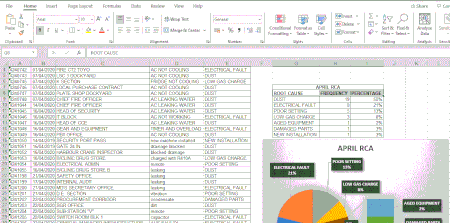
But as it looks in the picture, it can be in the wrong print area.
Go to the page layout
Cancel print area
Select the print area in the worksheet
(select with the mouse button held down - area turns gray)
Go back to the page layout Pressure area Click on Select print area
Should work.
Greetings,
Nikolino
I know I don't know anything (Socrates)


Patrick2788
May 23, 2021Silver Contributor
Possibly a corrupted print driver.
Some things to try:
1. Switch the default printer. Even if you have to set it to a PDF Writer, Send to OneNote, fax, etc. Switch it away from EW - does it display the same way in preview? If it looks OK, then the next step is to remove the printer from your computer and re-add it.
2. Open Excel in safe mode. Close Excel then press and hold the Ctrl key firmly when you click to launch Excel (Not the workbook but the app itself). Then open your workbook through file | open - does it preview the same way? If it looks OK, close the application and re-open your file in normal mode. Sometimes running the app through Safe mode irons out some of these quirks.
3. Save the workbook as a PDF then print the PDF. A workaround in case you're not able to print the workbook cleanly in Excel.
Some things to try:
1. Switch the default printer. Even if you have to set it to a PDF Writer, Send to OneNote, fax, etc. Switch it away from EW - does it display the same way in preview? If it looks OK, then the next step is to remove the printer from your computer and re-add it.
2. Open Excel in safe mode. Close Excel then press and hold the Ctrl key firmly when you click to launch Excel (Not the workbook but the app itself). Then open your workbook through file | open - does it preview the same way? If it looks OK, close the application and re-open your file in normal mode. Sometimes running the app through Safe mode irons out some of these quirks.
3. Save the workbook as a PDF then print the PDF. A workaround in case you're not able to print the workbook cleanly in Excel.

_jboy
May 23, 2021Copper Contributor
tried switching the default printer again and it worked thank you so much.