Forum Discussion

Need help with dynamic dependent drop down list...
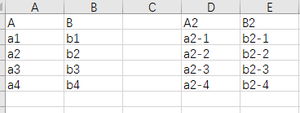

Kindly follow these sequential steps:
Step 1: Arrange the layout of your list, like this:
Step 2: With A1 selected, define List1 (Ctrl+Alt+F3) with this formula:
=List!$A$1:INDEX(List!$A:$A,COUNTA(List!$A:$A))
Step 3: With B1 selected, define ListHeaders (Ctrl+Alt+F3) with this formula:
=List!$B$1:INDEX(List!$1:$1,COUNTA(List!$1:$1))
Step 4: With B2 selected, define ListData (Ctrl+Alt+F3) with this formula:
=List!$B$2:INDEX(List!$B:$XFD,1048576,COUNTA(ListHeaders))
Step 5: Arrange your drop-down lists, like this:
Step 6: With A2 selected, validate List1 (Alt,A,V,V), like this:
Step 7: With B2 selected, define ListCount (Ctrl+Alt+F3) with this formula:
=COUNTA(INDEX(ListData,0,MATCH(!A2,ListHeaders,0)))
Step 8: With B2 still selected, define CountedList (Ctrl+Alt+F3) with this formula:
=INDEX(ListData,1,MATCH(!A2,ListHeaders,0)):INDEX(ListData,ListCount,MATCH(!A2,ListHeaders,0))
Step 9: With B2 still selected, validate List2 (Alt,A,V,V), like this:
Step 10: With C2 selected, validate List3 (Alt,A,V,V), like this:
Your validated lists will then look like this:
Note that you can only select an item from List 1, if List2 is empty and List3 is empty. Moreover, you can only select an item from List2, if List1 is not empty and List3 is empty. Finally, you can only select an item from List3, if List1 is not empty and List2 is not empty.
As you might have observed, the foregoing statements are the English Translations of the formulas in the Source box of the Data Validation tab.
