Forum Discussion

Need help calculating total sum of studtens skill in certain abilities by group
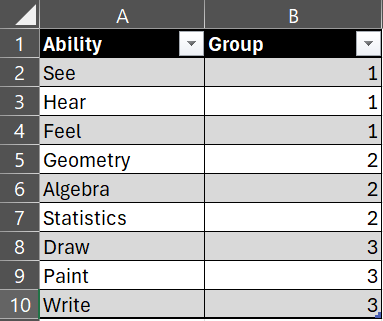
- Feb 12, 2024
ellaumbrella Do you have Excel for MS365? If so, give this formula a try in cell B2 of your summary table:
=SUM(FILTER(FILTER(Students, ISNUMBER(XMATCH(Students[#Headers], TOCOL(IFS(Abilities[Group]=VALUE(B$1), Abilities[Ability]), 2)))), Students[Student]=[@Student]))- OR -
=SUM(FILTER(FILTER(Students, ISNUMBER(XMATCH(Students[#Headers], FILTER(Abilities[Ability], Abilities[Group]=VALUE(B$1))))), Students[Student]=[@Student]))Please see the attached workbooks, if needed...

ellaumbrella Do you have Excel for MS365? If so, give this formula a try in cell B2 of your summary table:
=SUM(FILTER(FILTER(Students, ISNUMBER(XMATCH(Students[#Headers], TOCOL(IFS(Abilities[Group]=VALUE(B$1), Abilities[Ability]), 2)))), Students[Student]=[@Student]))
- OR -
=SUM(FILTER(FILTER(Students, ISNUMBER(XMATCH(Students[#Headers], FILTER(Abilities[Ability], Abilities[Group]=VALUE(B$1))))), Students[Student]=[@Student]))
Please see the attached workbooks, if needed...
 ellaumbrellaFeb 12, 2024Copper ContributorThank you! Way more complicated than I thought it would be. I will try to figure out how & why this works. Not sure what is exactly happening in the formula as of now.
- djclementsFeb 12, 2024Silver Contributor
ellaumbrella You're welcome! Yes, it's a bit complicated due to the crosstab setup of your data input table. To analyze the formula, we can work backwards from the inside out and separate each step using the LET function:
=LET( groupItems, FILTER(Abilities[Ability], Abilities[Group]=VALUE(B$1)), includeCols, ISNUMBER(XMATCH(Students[#Headers], groupItems)), groupData, FILTER(Students, includeCols), studentRow, FILTER(groupData, Students[Student]=[@Student]), SUM(studentRow) )- FILTER(Abilities[Ability], Abilities[Group]=VALUE(B$1)) returns the list of Abilities that belong to Group 1. The VALUE function is needed to convert the "1" in cell B1 to a numeric value, because table headers are type text and the Abilities[Group] column contains numbers.
- ISNUMBER(XMATCH(Students[#Headers], groupItems)) is used to determine which columns in the Students table belong to Group 1 by matching the table headers with the filtered list of Abilities.
- FILTER(Students, includeCols) returns all rows from the Students table, but only the columns belonging to Group 1.
- FILTER(groupData, Students[Student]=[@Student]) returns only the rows that match the Student name (1 row for "Adam" x 3 columns for Group 1).
- SUM(studentRow) returns the final sum of the student's scores for the group.
Having said that, there are other methods you could also try. Power Query, for example, can be used to "unpivot" the Students table and join it to the Abilities table, then output the results to a pivot table. Another option would be to use subtotal columns in your Students table, then "group" the columns so they can be expanded and collapsed to show/hide the data. I've attached a couple more workbooks, demonstrating these methods. In the GroupColumns file, click the +/- buttons (above the column headers) to expand/collapse the grouped columns (or click the [1] and [2] buttons on the left-hand side to expand/collapse all groupings at once). Cheers!