Forum Discussion

Need a little Assistance.
- Jun 03, 2024
Your requirement is to avoid duplicate lengths for the same cable tag in your summary worksheet, so far I understand it. Here is a more detailed step-by-step guide to achieve this in Excel, assuming you are using Excel 365 or Excel 2019.
Step-by-Step Solution
1. Identify Unique Cable Tags:
- In your summary worksheet (e.g., "Summary"), create a column to list unique cable tags.
- Enter the following formula in cell H4 of the "Summary" worksheet to get the unique cable tags:
=UNIQUE(FILTER(CONTROL!$M$4:$M$105, CONTROL!$M$4:$M$105 <> ""))
This formula will list all unique cable tags from the range CONTROL!$M$4:$M$105.
2. Sum Lengths for Unique Tags:
- Next, create another column to sum the lengths for each unique cable tag.
- Enter the following formula in cell I4 of the "Summary" worksheet:
=IF(H4<>"", SUMIF(CONTROL!$M$4:$M$105, H4, CONTROL!$E$4:$E$105), "")
Drag this formula down to match the number of unique tags generated in column H.
Full Example
Assume your summary worksheet is named "Summary":
- Unique Cable Tags: In Summary!H4:
=UNIQUE(FILTER(CONTROL!$M$4:$M$105, CONTROL!$M$4:$M$105 <> ""))
- Sum Lengths for Unique Tags: In Summary!I4:
=IF(H4<>"", SUMIF(CONTROL!$M$4:$M$105, H4, CONTROL!$E$4:$E$105), "")
Visualizing the Summary Sheet
Your summary sheet should look something like this after entering the formulas:
H (Unique Tags)
I (Total Lengths)
TAG1
50
TAG2
75
TAG3
100
...
...
Important Points
- Dynamic Array Formulas: The UNIQUE function creates a dynamic array of unique values that automatically updates as data in the "CONTROL" worksheet changes.
- Summing Unique Lengths: The SUMIF function sums the lengths for each unique tag listed in column H.
Handling Duplicates in Length Calculation
If you still face issues with duplicated lengths due to the presence of multiple entries of the same tag, consider the following approach:
- Consolidate Data: Ensure your data in the "CONTROL" worksheet doesn't contain duplicate tags for the same lengths, or handle this through data preprocessing to clean up duplicates.
- Advanced Formula: If needed, you can use more complex formulas or Power Query to consolidate data before performing the summary calculations.
If this doesn't fully address your needs or if there are any specific issues, please provide more details, and I can refine the solution accordingly. The text, steps and functions were created with the help of AI.
My answers are voluntary and without guarantee!
Hope this will help you.
Was the answer useful? Mark as best response and Like it!
This will help all forum participants.

Enter a Array Formula.
- Unique Cable Tags: In cell H4, enter the following formula to get the unique cable tags:
=UNIQUE(FILTER(CONTROL!$M$4:$M$105, CONTROL!$M$4:$M$105 <> ""))
This formula extracts the unique cable tags from the specified range.
- Summing Lengths for Unique Tags: In cell I4, enter the following array formula to sum the lengths of these unique tags:
=SUMIF(CONTROL!$M$4:$M$105, H4, CONTROL!$E$4:$E$105)
Drag this formula down to match the number of unique tags generated in column H.
The formula provided upper needs to be entered as an array formula in older versions of Excel. For Excel 365 and Excel 2019, you can enter it normally.
 Swizz3yJun 03, 2024Copper Contributor
So I have that first formula entered into a a different worksheet/tab in the back. But then not 100% on the second part of the formula what your saying to do?
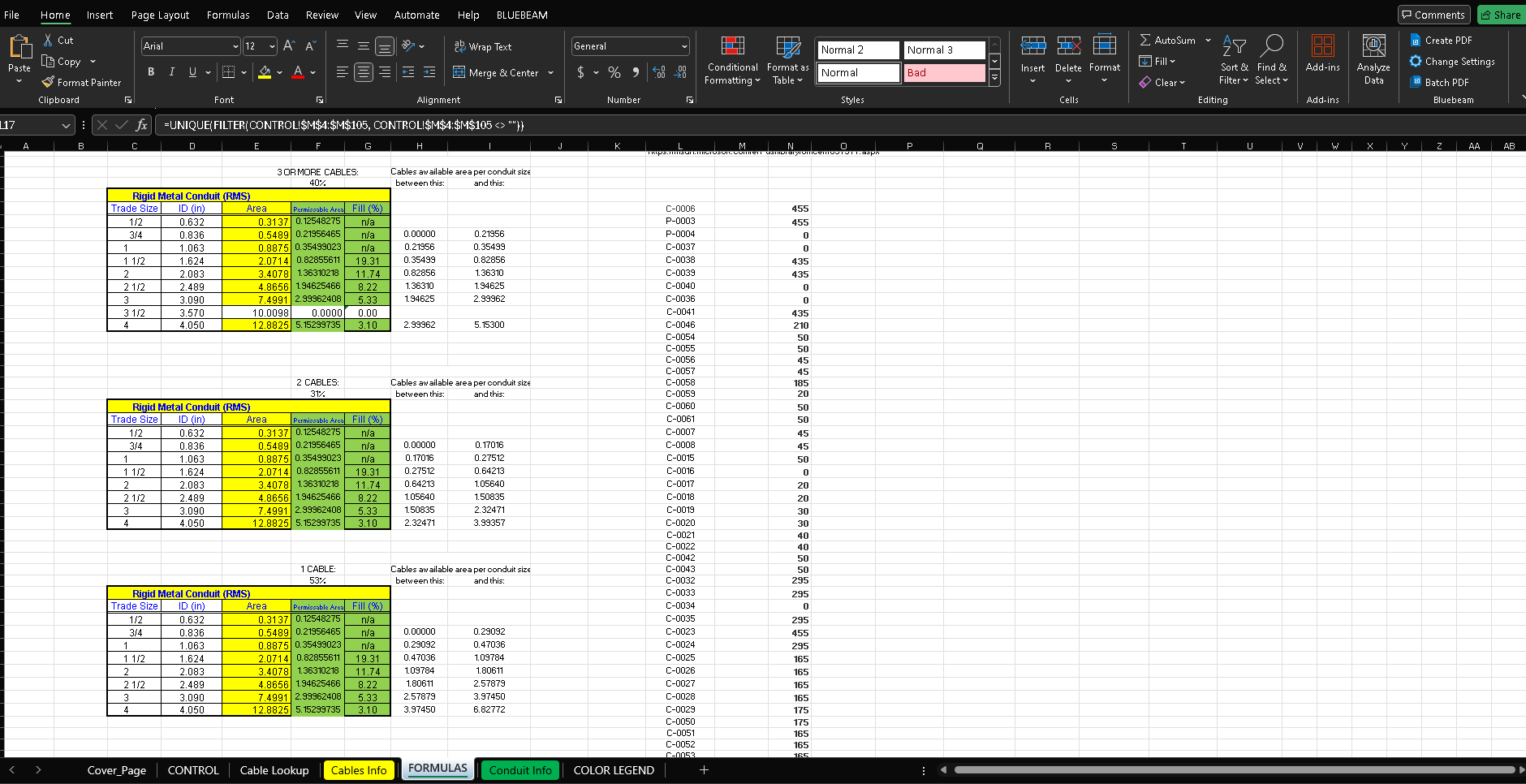
This is what I'm dealing with see total Cable Length. This will be what I end up printing and handing to the contractor and then the worksheet where I put some formulas and will make the cell I guess look back and find your formula since not 100% sure how to make it work on the main sheet.
I guess what I'm really needing is it to look at the lengths and not repeat if it finds duplicate lengths. But the total length is calculated based off that original formula: =IF(M87<>"",SUMIF(CONTROL!$M$4:$M$105,M87,CONTROL!$E$4:$E$105),"")
But it duplicates every time my cable tag repeats which stinks. But my cable tag has to repeat due to conduit retagging per pull boxes and other situations wherever my cable goes.
- NikolinoDEJun 03, 2024Platinum Contributor
Your requirement is to avoid duplicate lengths for the same cable tag in your summary worksheet, so far I understand it. Here is a more detailed step-by-step guide to achieve this in Excel, assuming you are using Excel 365 or Excel 2019.
Step-by-Step Solution
1. Identify Unique Cable Tags:
- In your summary worksheet (e.g., "Summary"), create a column to list unique cable tags.
- Enter the following formula in cell H4 of the "Summary" worksheet to get the unique cable tags:
=UNIQUE(FILTER(CONTROL!$M$4:$M$105, CONTROL!$M$4:$M$105 <> ""))
This formula will list all unique cable tags from the range CONTROL!$M$4:$M$105.
2. Sum Lengths for Unique Tags:
- Next, create another column to sum the lengths for each unique cable tag.
- Enter the following formula in cell I4 of the "Summary" worksheet:
=IF(H4<>"", SUMIF(CONTROL!$M$4:$M$105, H4, CONTROL!$E$4:$E$105), "")
Drag this formula down to match the number of unique tags generated in column H.
Full Example
Assume your summary worksheet is named "Summary":
- Unique Cable Tags: In Summary!H4:
=UNIQUE(FILTER(CONTROL!$M$4:$M$105, CONTROL!$M$4:$M$105 <> ""))
- Sum Lengths for Unique Tags: In Summary!I4:
=IF(H4<>"", SUMIF(CONTROL!$M$4:$M$105, H4, CONTROL!$E$4:$E$105), "")
Visualizing the Summary Sheet
Your summary sheet should look something like this after entering the formulas:
H (Unique Tags)
I (Total Lengths)
TAG1
50
TAG2
75
TAG3
100
...
...
Important Points
- Dynamic Array Formulas: The UNIQUE function creates a dynamic array of unique values that automatically updates as data in the "CONTROL" worksheet changes.
- Summing Unique Lengths: The SUMIF function sums the lengths for each unique tag listed in column H.
Handling Duplicates in Length Calculation
If you still face issues with duplicated lengths due to the presence of multiple entries of the same tag, consider the following approach:
- Consolidate Data: Ensure your data in the "CONTROL" worksheet doesn't contain duplicate tags for the same lengths, or handle this through data preprocessing to clean up duplicates.
- Advanced Formula: If needed, you can use more complex formulas or Power Query to consolidate data before performing the summary calculations.
If this doesn't fully address your needs or if there are any specific issues, please provide more details, and I can refine the solution accordingly. The text, steps and functions were created with the help of AI.
My answers are voluntary and without guarantee!
Hope this will help you.
Was the answer useful? Mark as best response and Like it!
This will help all forum participants.
- Swizz3yJun 04, 2024Copper Contributor
NikolinoDE Yeah I finally got it to work yesterday slowly understanding what you were putting out. I like that but unfortunately it not how we submit our stuff to the contractor as we submit it as shown in the image below, but I definitely do like it. I appreciate your help and will keep this post in mind 100% Thanks man.