Forum Discussion

My Refresh button got disabled in Excel Power Pivot
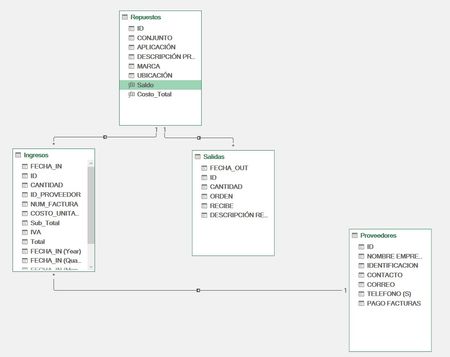

1. Quick checklist
Start by confirming these basic items:
Whether the file has been saved (unsaved files disable refresh)
Whether the Power Pivot plugin is enabled
File → Options → Add-ins → check “Microsoft Power Pivot for Excel”
Is the file in shared mode
Check if the status bar at the bottom right corner of the file shows “[Shared]”.
2. Common causes and repair
Scenario 1: Data Source Connection Failure
Open Power Pivot → Click “Design” → “Existing Connections”
Check the status of all connections (a red exclamation mark indicates a failure)
Right click on the failed connection → “Edit” Update path/credentials
Scenario 2: Permission problem
Re-enter the data source credentials:
Power Pivot → Design → “Data Source Settings”
Check “Save password” (if required)
Scenario 3: Cache Conflict
Close all Excel files
Delete the temporary files:
Press Win+R and type %temp% → Delete all Excel temporary files starting with ~$
Re-open the file
3. Force refresh method
By shortcut keys:
Press Alt+F5 to try to force a refresh
or use VBA commands (macros need to be enabled):
vba
ThisWorkbook.Model.Refresh
4. Rebuild the data model:
To export an existing model:
Power Pivot → Design → “Export Model”.
New Excel file → Import model
5. Check Group Policy Restrictions (Business Users):
Administrator Run gpedit.msc
Navigate to:
Computer Configuration → Administrative Templates → Microsoft Excel 2016 → Data Model Settings
Disable all restriction policies
6. Preventive measures
Best Practice:
Periodically compress the data model (Power Pivot → Design → Compress Model)
Avoid using Power Pivot in shared workbooks
Convert data sources to Excel sheets (Ctrl+T) before importing models

Thanks for the tips. I had to rebuilt the data mocel. Hope it doesnt occur again in the future!