Forum Discussion

Microsoft Word Security Notice
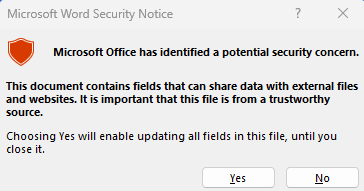

The Microsoft Word Security Notice is likely being triggered by the presence of external links in the Word document you're copying content from. This is a common security feature to prevent automatic interaction with untrusted links in macros or scripts.
To prevent this security dialog, you have a few options:
- Adjust Macro Security Settings in Word:
- Go to Word Options > Trust Center > Trust Center Settings.
- Under Macro Settings, try adjusting the settings to Disable all macros with notification or Enable all macros (less secure option, use with caution).
- Ensure that your document is stored in a trusted location.
- Bypass the Security Notice Using Code: Unfortunately, there isn't a direct way to automatically suppress this dialog via VBA due to security reasons. However, you can try automating the process of clicking "Yes" using SendKeys or altering the handling of links.
Option 1: Use SendKeys to automatically click "Yes"
You can simulate pressing the "Yes" button using the SendKeys function, although this isn't the most reliable or recommended solution, especially because it may interfere with other system operations. Here's how you can incorporate it:
Vba Code is untested, backup your file first.
Sub Email_Trust()
    Dim OutApp As Object, OutMail As Object
    Dim wd As Object, doc As Object, editor As Object

    ' Open Word and the document
    Set wd = CreateObject("Word.Application")
    wd.DisplayAlerts = False ' Suppress other alerts
    SendKeys "Y", True ' Automatically press "Yes" on the security warning

    Set doc = wd.documents.Open("\\filepath\document.docx")
    doc.Content.Copy

    ' Set up Outlook email
    Set OutApp = CreateObject("Outlook.Application")
    Set OutMail = OutApp.CreateItem(0)

    With OutMail
        .SentOnBehalfOfName = "email address removed for privacy reasons"
        .Subject = "Subject"
        .BCC = "email address removed for privacy reasons"
        Set editor = .GetInspector.WordEditor
        editor.Content.Paste
        .display
    End With

    ' Clean up
    doc.Close 0
    Set OutMail = Nothing
    Set wd = Nothing
    Set OutApp = Nothing
End Sub
This will press "Y" (for "Yes") when the security dialog appears, but again, this isn't foolproof and may cause unintended issues if other windows are active.
Option 2: Add Word Document to Trusted Locations
You can place your Word document in a trusted location, which will prevent Word from showing the security notice when opening files from that location.
- Open Word.
- Go to File > Options > Trust Center.
- Click on Trust Center Settings.
- Select Trusted Locations and add the folder where your Word document is stored.
Option 3: Digitally Sign the Macro
Signing the macro with a digital certificate can help bypass some security warnings. You can create a self-signed certificate or use a trusted one from a certificate authority. Once signed, the macro will be considered more secure by Office applications.
- In Excel, go to File > Options > Trust Center > Trust Center Settings > Macro Settings.
- Enable the option to trust signed macros.
- Sign your macro using a digital certificate.
Conclusion:
- The SendKeys method is a potential workaround but is not very robust.
- The best option is to adjust the macro security settings or place the document in a trusted location.
- Using a digital certificate for your macros is a more secure, long-term solution.
Since no one has answered yet, even though it has been read many times, I have called in the AI to help and prepared this answer for you.
My answers are voluntary and without guarantee!
Hope this will help you.
Was the answer useful? Mark as best response and Like it!
This will help all forum participants.