Forum Discussion

How to get the details on the Headers from PDF
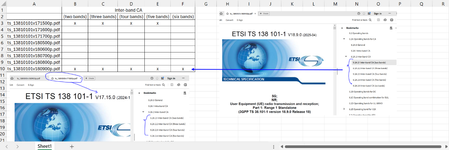
- Jun 15, 2025
With data model we need
- first add another table with unique file names
- Set relationships between it and main table
3. Create new measure as
Bands count:=COUNTA( Table1[Inter band CA(num)] ) + 0Please not, we plus zero to convert blanks to numbers
4. Add KPI to that measure
5. Create PivotTable using
With that icons also will be in totals as well.
Perhaps it's easier to do everything with Power Query
let
    Source = Excel.CurrentWorkbook(){[Name="Table1"]}[Content],
    DeclareType = Table.TransformColumnTypes(
        Source,
        {
              {"File Name", type text}
            , {"Section Number", type text}
            , {"Inter band CA(num)", type text}
        }),
    NameForEmpty = Table.ReplaceValue(
        DeclareType, "", "band",
        Replacer.ReplaceValue,{"Inter band CA(num)"}),
    CountBands = Table.Pivot(
        NameForEmpty,
        List.Distinct(NameForEmpty[#"Inter band CA(num)"]), "Inter band CA(num)",
        "Section Number", List.Count)
in
    CountBands
pivoting inside. With that we have structured table to whic we may apply usual conditional formatting

Sorry, SergeiBaklan , for I am taking more time to understand , and not able to grasp the concept.. what I did is as below(attaching the file again)
Step 1) Created the measure, from the Table1 {Also , in Power pivot why we see two groups of the fields? one with the "File Name" "Inter band CA(num)" "Section Number" and the one with "Table1[File Name]" , "Table1[Inter band CA(num)]" and "Table1[Section Number]"?
Step-2) Then I created a Measure like this
Step-3), I can see the KPI( Measure) created in my Pivot as below, but when I select "Status" nothing happens
Attaching my Worksheet again,
Br,
Anupam

With data model we need
- first add another table with unique file names
- Set relationships between it and main table
3. Create new measure as
Bands count:=COUNTA( Table1[Inter band CA(num)] ) + 0Please not, we plus zero to convert blanks to numbers
4. Add KPI to that measure
5. Create PivotTable using
With that icons also will be in totals as well.
Perhaps it's easier to do everything with Power Query
let
    Source = Excel.CurrentWorkbook(){[Name="Table1"]}[Content],
    DeclareType = Table.TransformColumnTypes(
        Source,
        {
              {"File Name", type text}
            , {"Section Number", type text}
            , {"Inter band CA(num)", type text}
        }),
    NameForEmpty = Table.ReplaceValue(
        DeclareType, "", "band",
        Replacer.ReplaceValue,{"Inter band CA(num)"}),
    CountBands = Table.Pivot(
        NameForEmpty,
        List.Distinct(NameForEmpty[#"Inter band CA(num)"]), "Inter band CA(num)",
        "Section Number", List.Count)
in
    CountBands
pivoting inside. With that we have structured table to whic we may apply usual conditional formatting
- anupambit1797Jun 15, 2025Steel Contributor
Thank you So much Sergei for your Support!!, I recall similar issue you last time also solved by the function Pivotby , if you get some time to share the solution with pivotby too.