Forum Discussion

how to copy dynamic data from one Sheet to another with criteria in Excel with VBA
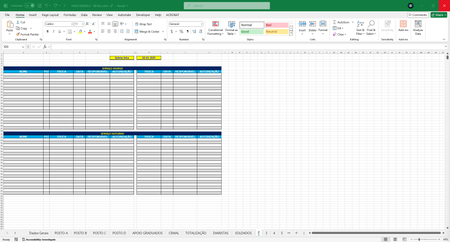

To copy the filtered data based on the criteria from one sheet to another in Excel using VBA, here's a more structured approach. You want to copy the names from a source sheet (POSTO A) based on a column (day type: SN, SD, PL) and paste the data to two separate sections (Serviço Diurno and Serviço Noturno) on the destination sheet, and handle PL by copying to both sections.
Below is the modified VBA code that handles your scenario and criteria for copying data to the correct sections.
VBA Code:
Vba Code is untested backup your file first.
Public Sub UpdateExchangesBook()

    Dim wsCt As Worksheet, wsMD As Worksheet, wsOrg As Worksheet, wsDst As Worksheet
    Dim rgDC As Range, rgDataEval As Range, rgDataFlt As Range
    Dim CalcCL As Byte, cM As Byte, cD As Byte
    Dim strStNm As String, LastRow As Long, Z As Range, rgDsCel As Range
    Dim Criteria As String

    With ThisWorkbook
        ' Set your sheets
        Set wsCt = .Sheets("Dados Gerais")
        Set wsMD = .Sheets("TOTALIZAÇÃO")
        Set wsOrg = .Sheets("POSTO A")  ' Source Sheet

        cM = wsCt.Range("B2").Value  ' Get the month value from B2
        CalcCL = 3  ' Start column for day evaluation (Assumed)

        ' Set the range of the calendar or day columns to loop through
        Set rgDC = wsMD.Range(wsMD.Range("B1"), wsMD.Range("B1").End(xlToRight))

        For Each x In rgDC
            cD = Day(x)

            If cM = 1 Then
                If cD > 30 Then Exit For
                cD = cD + 1
            End If

            strStNm = cD

            If cM = 12 Then
                If cD > 31 Then
                    strStNm = cD & "J"
                End If
            End If

            ' Set the destination sheet (the day sheet)
            Set wsDst = .Sheets(strStNm)

            ' Unprotect the source sheet before working with data
            wsOrg.Unprotect "101"

            ' Clear previous content from Serviço Diurno and Serviço Noturno sections
            wsDst.Range("A8:B27").ClearContents  ' Serviço Diurno Section
            wsDst.Range("A31:B50").ClearContents ' Serviço Noturno Section

            ' Check if there is any filter and remove it
            If wsOrg.AutoFilterMode Then wsOrg.AutoFilterMode = False

            ' Set the data range to evaluate and apply filters
            Set rgDataEval = wsOrg.Range("A1:" & Cells(33, CalcCL).Address)
            rgDataEval.AutoFilter Field:=CalcCL, Criteria1:="S?", Operator:=xlOr, Criteria2:="PL"

            ' Check if there is any visible data after the filter
            On Error Resume Next
            Set rgDataFlt = wsOrg.AutoFilter.Range.SpecialCells(xlCellTypeVisible).Offset(2, 0)
            On Error GoTo 0

            If Not rgDataFlt Is Nothing Then
                ' Loop through the filtered rows and copy to the destination
                For Each Z In rgDataFlt.Columns(CalcCL).Cells
                    Criteria = Z.Value  ' Get the criteria (SN, SD, PL)

                    ' Copy data based on the criteria
                    If Criteria = "SD" Then
                        ' Serviço Diurno
                        Set rgDsCel = wsDst.Range("A27").End(xlUp).Offset(1, 0)
                        rgDsCel.Value = rgDataFlt.Columns(1).Cells(Z.Row, 1).Value  ' Copy the Name
                        Set rgDsCel = wsDst.Range("B27").End(xlUp).Offset(1, 0)
                        rgDsCel.Value = Right(wsOrg.Range("A1").Value, 1)  ' Add rightmost letter from A1 (if applicable)
                    ElseIf Criteria = "SN" Then
                        ' Serviço Noturno
                        Set rgDsCel = wsDst.Range("A50").End(xlUp).Offset(1, 0)
                        rgDsCel.Value = rgDataFlt.Columns(1).Cells(Z.Row, 1).Value
                        Set rgDsCel = wsDst.Range("B50").End(xlUp).Offset(1, 0)
                        rgDsCel.Value = Right(wsOrg.Range("A1").Value, 1)
                    ElseIf Criteria = "PL" Then
                        ' PL goes to both Diurno and Noturno
                        ' Diurno
                        Set rgDsCel = wsDst.Range("A27").End(xlUp).Offset(1, 0)
                        rgDsCel.Value = rgDataFlt.Columns(1).Cells(Z.Row, 1).Value
                        Set rgDsCel = wsDst.Range("B27").End(xlUp).Offset(1, 0)
                        rgDsCel.Value = Right(wsOrg.Range("A1").Value, 1)

                        ' Noturno
                        Set rgDsCel = wsDst.Range("A50").End(xlUp).Offset(1, 0)
                        rgDsCel.Value = rgDataFlt.Columns(1).Cells(Z.Row, 1).Value
                        Set rgDsCel = wsDst.Range("B50").End(xlUp).Offset(1, 0)
                        rgDsCel.Value = Right(wsOrg.Range("A1").Value, 1)
                    End If
                Next Z
            End If

            ' Remove filters after processing
            wsOrg.AutoFilterMode = False
            wsOrg.Protect "101"  ' Re-protect the source sheet after processing

        Next x  ' End loop through day columns

    End With

End Sub
Key Points:
- Filtering and Copying:
- The code filters column CalcCL for SD, SN, and PL values.
- Depending on the criteria (SD, SN, or PL), it copies the names to the relevant sections of the destination sheet (Servico Diurno or Servico Noturno).
- PL values are copied to both sections.
- Handling Dynamic Rows:
- It dynamically adds the filtered data to the next available row in each section (A27 for Servico Diurno and A50 for Servico Noturno).
- Error Handling:
- Error handling is added to avoid runtime errors when there are no visible cells after applying the filter.
- Unprotecting and Protecting Sheets:
- The code unprotects the sheet while performing the copy-paste operations and reprotects it afterward using the password "101".
Final Thoughts:
This updated code should now copy the filtered data based on the day type to the correct sections of the destination sheet as per your criteria. Make sure that the ranges you are working with (A8:B27 and A31:B50) are large enough to accommodate all the rows being copied over. The text, steps and the code were created with the help of AI.
My answers are voluntary and without guarantee!
Hope this will help you.
Was the answer useful? Mark as best response and like it!
This will help all forum participants.