Forum Discussion

How to apply conditional formatting for multiple relative cells
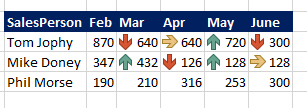

We can't use relative references for such conditional format, but we may use OFFSET(). The idea is here Conditional Formatting Icons with Relative References – Daily Dose of Excel
For your sample
 DSK ChakravarthyDec 13, 2022Brass ContributorThank you for the quick inputs. Yes, that is working for one row. But, on one condition, that there should not be data, due to copying the cell. So, initially, I have to format the cells and feed the data into the cells.
Now the challenge is for multiple employees. I have about 100s of rows. When I copy the previous row, the offset reference is still remaining with previous cell. Thus, I have to format the initial cell of the row again and then copy that to the next cell.
Is there any other way to
point 1) avoid multiple single copy cell mechanism?
point 2) use it with multiple rows- SergeiBaklanDec 13, 2022Diamond Contributor
We may modify rule formula as
=OFFSET($D$10, ROW()-ROW($D$10),COLUMN()-COLUMN($D$10)-1)and be sure rule is applied only to the cell E10
Using format painter apply the rule to other cells in this row and next row. Let assume first row won't be copy/pasted.
Now if we copy paste one of next rows, e.g. D14:H14 to D11:H11 and check the rule in any cell of these rows we see that rangy to apply is expanded
which give incorrect behaviour. We need to apply icons rule to one cell only. For that select first row (E10:H10), double click on format painter icon and apply rules to rows which you copied and into which you pasted, in our case is just click with format painter on E14 and E15.
Check again, rue is applied to one cell only and works correctly
Range to apply is usually expanded if you copy/paste last row with data to the next empty one. If copy/paste row from the middle of data it shall work without correction. Didn't play with all scenarios (deleting, inserting, etc). If in your scenario it doesn't work you always may apply format from unchanged first row.