Forum Discussion

How do you create table that automatically add or delete rows?
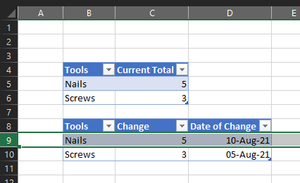
- Aug 15, 2021
One way is to use VBA in order to achieve this functionality.
In the attached, you will find two tables named "Main" and "Change" where table "Main' contains some records. And once you start adding records in the Change Table, the Main Table will update accordingly.
The Sheet1 Module Contains the following Change_Event Code in it.
Private Sub Worksheet_Change(ByVal Target As Range)
If Target.CountLarge > 1 Then Exit Sub

Dim tblMain     As ListObject
Dim tblChange   As ListObject
Dim n           As Variant
Dim r           As ListRow
Set tblMain = ActiveSheet.ListObjects("Main")
Set tblChange = ActiveSheet.ListObjects("Change")
On Error GoTo Skip

If Not Intersect(Target, tblChange.DataBodyRange.Cells) Is Nothing Then
    Application.EnableEvents = False
    If Target.Column = tblChange.DataBodyRange.Columns(1).Column Then

        n = Application.Match(Target.Value, tblMain.DataBodyRange.Columns(1), 0)
        If IsError(n) Then
            If tblMain.DataBodyRange.Cells(1) = "" Then
                Set r = tblMain.ListRows.Add(1)
            Else
                Set r = tblMain.ListRows.Add
            End If
            r.Range(1, 1).Value = Target
        End If
        Target.Offset(0, 2).Value = Date
        Target.Offset(0, 2).NumberFormat = "dd-mmm-yyyy"
    ElseIf Target.Column = tblChange.DataBodyRange.Columns(2).Column Then
        n = Application.Match(Target.Offset(0, -1).Value, tblMain.DataBodyRange.Columns(1), 0)
        If Not IsError(n) Then
            Set r = tblMain.ListRows(n)
            r.Range(1, 2).Value = r.Range(1, 2).Value + Target.Value
            If r.Range(1, 2).Value = 0 Then
                tblMain.ListRows(n).Delete
            End If
        End If
        Target.Offset(0, 1).Value = Date
        Target.Offset(0, 1).NumberFormat = "dd-mmm-yyyy"
    End If
End If
Skip:
Application.EnableEvents = True
End Sub


It is just a regular Excel formula. OK, not so regular since most users will not recognise the formula as Excel! The following announces that LET is now generally available on Excel 365.
LET Generally Available (microsoft.com)
Searches of the Microsoft site should give links to the introduction of Dynamic Arrays (2018), the Announcement of LET and, still on insider beta channels the announcement of Lambda functions and Lambda helper functions that feed array parameters into Lambda functions and collect the results to form an array of results.
It all represents the most dramatic change imaginable.

- PeterBartholomew1Aug 18, 2021Silver Contributor
Sadly some of my naming was not helpful. In the following
FILTER(stockQty, stock>0)the first term was a two column array of tool name and its total quantity. The second was the stock quantity. What FILTER does is retain the rows that satisfy the condition
stock > 0so giving a fully dynamic result that changes as the data is revised. I used LET simply because that is the way I program Excel. In this instance it would be pretty easy to do without by nesting the variable definitions within the final formula.
= FILTER( CHOOSE( {1,2}, UNIQUE(Change[Tools]), SUMIFS(Change[Qty], Change[Tools], tool)), SUMIFS(Change[Qty], Change[Tools], tool)>0) )- MailutorontoAug 24, 2021Copper ContributorWhere are you entering these codes? They look very much like VBA (I'm in the middle of learning).
2nd, although I recognize those formula, but I have no idea how it is supposed to be implemented on the sheet.
I'm not that great with Excel so I can't comment on whether if this works the way I wanted it to. The commentor above, however, did achieve what I wanted it to do with bugs.
Still, thanks for looking into this. I'll have to revisit this sometime later. I'm still in the middle of learning VBA.- PeterBartholomew1Aug 24, 2021Silver Contributor
You are not alone. It happens frequently that the Excel 365 formulas I publish are not even recognised as spreadsheet formulas! I have tidied up the naming a little to make the quantities a little clearer.
= LET(
  tool,     UNIQUE(Change[Tool]),
  stockQty, SUMIFS(Change[Qty], Change[Tool], tool),
  stockTbl, CHOOSE({1,2}, tool, stockQty),
  FILTER(stockTbl, stockQty>0))
The formula that generates the table is in cell F3. A fairly normal trick for debugging a LET formula, is to return one of the local names at a time as the result of the calculation
= LET(
  tool,     UNIQUE(Change[Tool]),
  stockQty, SUMIFS(Change[Qty], Change[Tool], tool),
  stockTbl, CHOOSE({1,2}, tool, stockQty),
  result,   FILTER(stockTbl, stockQty>0),
  stockTbl)
By inspecting each name in turn, one is able to gain insight and debug the formula. So far, this only applies to Excel 365, but it represents the most profound change to occur in spreadsheet technology since they were first introduced in the 1980s.
This may represent the emergent butterfly, but many will continue to admire and play only with the caterpillars!