Forum Discussion

Highlights
- Mar 21, 2023
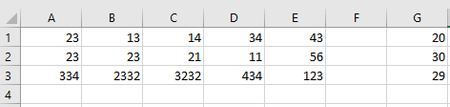
That requires conditional formatting, but you need only one rule for the entire range.
Select for example A1:E1000 or even further down.
A1 should be the active cell in the selection.
On the Home tab of the ribbon, click Conditional Formatting > New Rule...
Select 'Use a formula to determine which cells to format'.
Enter the formula=A1<$G1
The $ before the column letter G is essential.
Click Format...
Activate the Fill tab.
Select a highlight color.
Click OK, then click OK again.

That requires conditional formatting, but you need only one rule for the entire range.
Select for example A1:E1000 or even further down.
A1 should be the active cell in the selection.
On the Home tab of the ribbon, click Conditional Formatting > New Rule...
Select 'Use a formula to determine which cells to format'.
Enter the formula
=A1<$G1
The $ before the column letter G is essential.
Click Format...
Activate the Fill tab.
Select a highlight color.
Click OK, then click OK again.

Thank you so much! it actually worked. only needed to format paint it and that was it!