Forum Discussion

Highlighting Content
- Apr 05, 2023
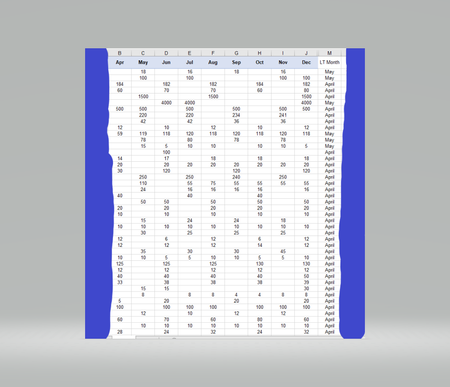
B1:J1 contains abbreviated months, while M2:M1068 contains the full month names.
Enter =TEXT(L2,"mmm") in M2, then fill down.

Select B2:J50 (or however far down the data extend).
B2 should be the active cell in the selection.
On the Home tab of the ribbon, click Conditional Formatting > New Rule...
Select 'Use a formula to determine which cells to format'.
Enter the formula =B$1=$M2
Click Format...
Activate the Fill tab.
Select a highlight color.
Click OK, then click OK again.

How do I get this rule to work for all the months? The way you have it populated only highlights data with the month May. I want it to highlight every month specific to where the first data falls.
1) In row C2 it highlighted it properly because it hit in May.
2) How do I get cell's to highlight if they're specific to April, June, July....... So on and so forth?
- Brandon_HipkinsApr 04, 2023Copper ContributorAdding additional request.
How would I make sure it is only selecting data that has values? I don't want anything blank to highlight.
So for row 2&3. I want only cell C2 to highlight
For row 4 & 5 I'd only want cell B4 to highlight
For ones that are specific to June I'd only want June to highlight if there is a numerical value there.- HansVogelaarApr 05, 2023MVP
1) In my first reply, I wrote that you should select B2:J50 (or further down). This will take care of all months from May to December.
2) Change the formula in the rule to
=AND(B$1=$M2, B2<>"")
- Brandon_HipkinsApr 05, 2023Copper Contributor
HansVogelaar This did not work. The formula's are still giving me the same errors as before. I have attached within a preview of the conditional formats and as much of the worksheet as I can.