Forum Discussion

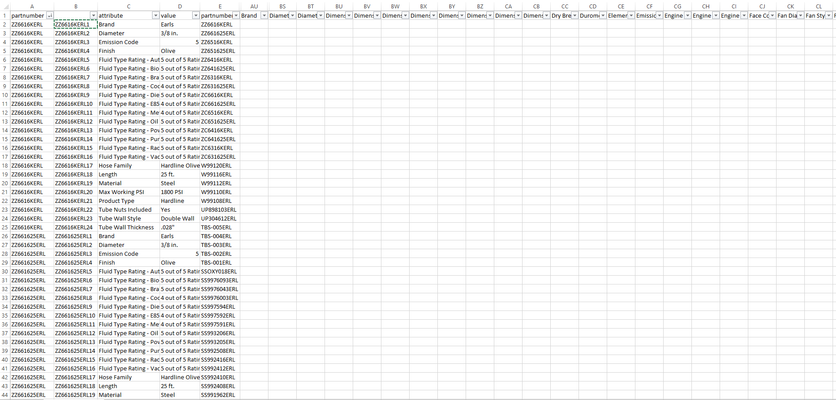
Help moving data and matching to correct columns and rows.
- Apr 14, 2021
turboedbird Are you familiar with Power Query (PQ)?
It would take only a few steps (connect to the csv file, keep three columns, promote headers, do some sorting, data typing and cleaning-up and then pivot the attribute column). Now, if you are not familiar with PQ, this will mean absolutely nothing to you.
I've done all that but noticed that, for instance, part number 300104ERL has one attribute called "Compatible Hose" with 5 different values on 5 different rows. The pivot step mentioned above couldn't handle this, so an extra step had done to group such items. But then the five different hose types are merged into one cell. Not sure if that is a problem for you or not.
The end result is a table with 4203 rows and 298 columns. File attached, though you will not be able to connect to the source file as it was linked to a location on my computer. Now, if you do know PQ, you'll be able to fix that yourself.

Riny_van_Eekelen Hi, I think I have a similar issue, but on a smaller scale. The answer may lie in Power BI, which someone else is looking into, but for now, I am getting csv files from data from our client database, and even if it's cleaned up in Power Bi, when we export out, it appears like table on left in pic below.
We want it to end up like Table on right in pic. I've done a little playing with PQ, but can't get it to get data to stay married properly, without just ending up with hundreds of columns and the questions repeated etc
(This isn't the actual data, but the set up is identical.) Have attached this spreadsheet.
Any help very much appreciated.

Davidm54
Can offer you two solutions. Choose the one you like best.
Power Query: Connect to the blue table, pivot the Question column with Answer as the values, without aggregation. Load to Excel.
Power Pivot: Add the blue table to the Data Model and create a DAX measure for the Answer column like:
=CONCATENATEX( Table1, Table1[Answer] )Create a pivot valve with Questions in the column field, Name in the row field and the newly created measure in the value field.
Both solutions are included in the attached file.
- Davidm54Apr 26, 2021Brass ContributorThank you so much. I'm only weeks into using PQ consistently, so there's still stuff confusing me about it, this not only solves problem, but also shows me I was looking in right spot, I just hadn't quite sussed what the options effected. Wins all round. thanks again.