Forum Discussion

Grouping data sourced from another sheet in that workbook.
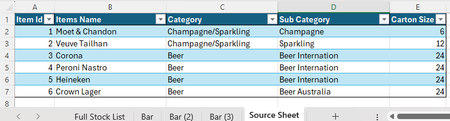

IMHO it sounds like you just need a Full Stock List and add a column called Bar#. Then you enter all the data on that sheet. As for the 'Source Sheet' it appears that is just a reference sheet to lookup the items/catagories/carton sizes which you could then use data validation to make sure they are entered correctly on the Full Stock List. Then you can either filter by the Bar#, or have a report page with a pivot table or Filter formula and type in or use drop down to select which bar, or have tabs for each bar.
That all said, you can pull data from multiple sheets using a formula like HSTACK('Bar':'Bar (3)'!F2:F99), that said all of the rows need to align but then you can add something like BYROW to add each row of values:
=BYROW(HSTACK('Bar':'Bar (3)'!F2:F99), SUM)
or the full format would be:
=BYROW(HSTACK('Bar':'Bar (3)'!F2:F99), LAMBDA(r, SUM(r))
But that gets you in the same position of not being able to sort or regroup the items on that Full Stock List
So in order to do that you will need to also pull the corresponding item so if "Item Id" is unique and stays with corresponding item/catagory/subcatagory that would make it easier because then you can use:
=XLOOKUP([@[Item Id]], Bar[Item Id], BYROW(HSTACK('Bar':'Bar (3)'!F2:F99), SUM))
Then when you sort or move the rows around on the Full Stock List the corresponding totals will move too.
If you want to keep each of the sheet/bar columns you can also do the same sort of XLOOKUP for each column and then the SUM of that row stays the same.
 CeddsterJul 15, 2026Copper Contributor
I appreciate your help, however still stuck on a couple of points!
I have the Bar sheets as I actually have 15 bars and over 300 products. i have just made this small version as its easier to play around with while I try fixing everything.
For the Source Sheet. The goal is to have one sheet with all my products that I can edit, that will automatically update the other sheets to avoid things missing.
As for everything else, I have never used XLOOKUP so thank you for showing it to me though I haven't quite worked it out exactly! I have managed to add it to the Bar columns in Full Stock list, but not Grand Total column. But then when sorting the values become N/A
Sorry, I am trying to learn haha
- m_tarlerJul 17, 2026Silver Contributor
Your lookup formula is looking at single cells for the lookup and return ranges (i.e. get rid of the @ in the lookup range and in the return range). It should look like:
=XLOOKUP([@[Item Id]], Bar[Item Id], Bar[Total])
TIP when entering the formula you can click on the corresponding Item Id cell and it should automatically add the @ version and then when you want the Item Id range on the Bar tab you go there and hover over the header of that column and when the cursor turns to a down arrow you click and it should give you the whole column.