Forum Discussion

Getting error when adding Add-ins in Excel
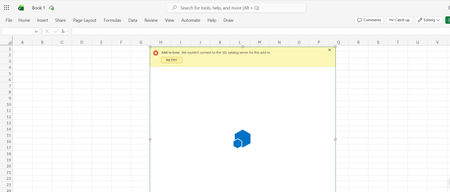

Because the same error happens in both Excel Desktop and Excel for the Web, it is unlikely that the problem is caused by one specific add-in. The message:
“We couldn't connect to the '{0}' catalog server for this add-in”
usually means Excel cannot reach the Microsoft add-in catalog service or there is an account, browser, or network connection issue.
Please try the following steps in order:
Check your Microsoft 365 account
Open Excel:
File → Account
Confirm that:
- You are signed in with the correct Microsoft account
- Your Microsoft 365 Personal subscription is active
- There are no subscription or payment issues
Then sign out of Office completely and sign in again.
Test the add-in store in your browser
Open a private browser window:
- Edge: InPrivate
- Chrome: Incognito
Sign in with the same Microsoft account and open the Office add-in store:
Microsoft AppSource Office Add-ins
If the store does not open or you cannot view add-ins there, the issue is most likely related to your account or network connection.
Check Excel privacy settings
In Excel Desktop:
File → Account → Account Privacy → Manage Settings
Make sure that connected experiences are enabled.
Office add-ins require these services to work.
Try another network
If possible, test Excel using another internet connection (for example, a mobile hotspot).
- If it works on another network, something on your current network may be blocking Microsoft services.
- If it still fails, the problem is more likely related to your Microsoft account or Microsoft services.
Update Office
Make sure Microsoft 365 is up to date:
Excel → File → Account → Update Options → Update Now
Also ensure Windows updates are installed.
If the problem continues
Please provide...
- Your Microsoft account type (Microsoft 365 Personal, Family, etc.)
- The exact time the error occurred (including your time zone)
- A screenshot of the error
- Whether the problem happens in both Excel Desktop and Excel for the Web
- Whether the AppSource add-in store opens successfully
An Office repair/reinstall is usually not the first solution in this case, because the problem also occurs in Excel for the Web.
I hope this helps narrow down the cause.
The most important first tests are:
- Confirm the Microsoft 365 subscription/account
- Test the add-in store in a private browser window
- Try another network connection
These three steps usually identify where the problem is coming from.