Forum Discussion

Freezing multiple rows
 Feb 28, 2019
Absolutely brilliant. Thank you so much. I've used Excel for more than 20 years and I'm pretty sure this method is new - or, at least, newish. But it's great to find out there really is a way. Thank you for pointing the way.

Unfreeze the rows/columns. Then if you want to freeze more than the top and more than the first column, go to the cell below the row you want to freeze and after the column you want to freeze and the select Freezes panes.

Tanya Denton That response works fine if you want to freeze rows and columns. But I can't find any way to freeze a specific row, no columns. I use data sheets with headings on the second row and I need them visible when I scroll down. Used to be so easy in old Office. Please help me as this is crucial in my work. thanks!
- Riny_van_EekelenFeb 26, 2020Platinum Contributor
Just select cell A3 and select Window, Freeze Panes. Then, row 1 and 2 will be frozen but no columns. Has been like that for many years.
 abhijeetsafaiOct 17, 2024Copper ContributorMany thanks! It worked for me!
- cmccurdyFeb 27, 2023Copper ContributorHonestly this should be the top answer. Simple, easy, and strait forward.
 LordDedderJun 22, 2023Copper Contributor
The following works for me.
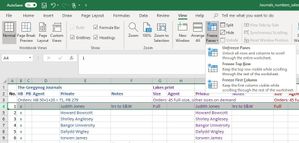
1. Unfreeze Panes (View ribbon).
2. Select the entire row BELOW the last row you want frozen.
3. Freeze Panes (NOT Freeze Top Row).
done.
 dennisduganDec 19, 2020Copper Contributor
that doesn't work in y 365. Riny_van_Eekelen
- Riny_van_EekelenDec 19, 2020Platinum Contributor
dennisdugan Not sure why it doesn't work for you. Has worked like that for decades. Also on MS365.
Note: Screenshots taken on a Mac, but it's similar on a PC.
