Forum Discussion

Formula Assistance
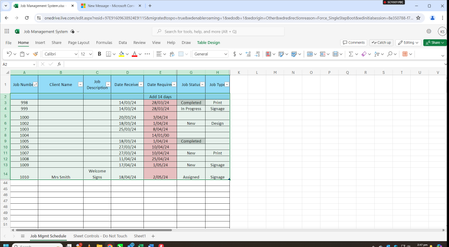
- May 05, 2024
I would like to point out that without minimal information from the beginning about the Excel version, operating system and storage medium, it is a guessing game that not everyone has the time to invest in. Without this minimal information it takes a lot of useless time.
Welcome to your Excel discussion space!
Anyway…
It sounds like you are encountering some limitations with conditional formatting in Excel Online (OneDrive).
Unfortunately, Excel Online does have some differences and limitations compared to the desktop version of Excel.
Conditional formatting in Excel Online is more limited in terms of the types of rules you can create compared to the desktop version. However, you should still be able to achieve your desired outcome with a formula-based rule.
Here is how you can adjust the formula for conditional formatting in Excel Online:
- Select the range of cells in column B where you want the conditional formatting to apply (e.g., B2:B100).
- Click on "Conditional Formatting" in the toolbar.
- In the dropdown menu, select "New Rule".
- Choose "Use a formula to determine which cells to format".
- Enter the following formula in the formula box:
=AND(NOT(ISBLANK(B2)), B2-TODAY()<=2, B2-TODAY()>=0, C2<>"Completed")
- Choose the desired formatting options (e.g., red background color).
- Click "Done" or "Apply".
This adjusted formula should work within the limitations of Excel Online and still achieve the desired result of highlighting cells within 2 days of the Date Required date, unless the corresponding Job Status cell contains the word "Completed".
If you continue to experience issues or if the provided solution doesn't meet your needs due to the limitations of Excel Online, you may need to consider alternative approaches or using the desktop version of Excel for more advanced conditional formatting.

You can achieve both of these tasks using Excel formulas and conditional formatting.
Here is how you can do it:
- Automatically fill Date Required column (Column B):
- In cell B2, enter the following formula:
=IF(A2<>"", A2+14, "")
- This formula checks if a date is entered in cell A2. If a date is entered, it adds 14 days to that date. If cell A2 is empty, cell B2 will remain blank.
- Conditional Formatting to highlight dates approaching within 2 days:
- Select the range of cells in column B where you want the conditional formatting to apply (e.g., B2:B100).
- Go to the "Home" tab on the Excel ribbon.
- Click on "Conditional Formatting" in the "Styles" group, then select "New Rule...".
- In the "New Formatting Rule" dialog box, select "Use a formula to determine which cells to format".
- Enter the following formula in the formula box:
=AND(B2<>"" , B2-TODAY()<=2, B2-TODAY()>=0, C2<>"Completed")
- Click on the "Format..." button, choose the desired formatting options (e.g., red background color), and click "OK".
- Click "OK" again to apply the conditional formatting rule.
Now, the Date Required cells will automatically fill with a date 14 days after the Date Received column is filled, and cells in the Date Required column that are within 2 days of today's date will be highlighted in red, unless the corresponding Job Status cell in column C contains the word "Completed".
This setup should help you manage your job deadlines effectively.
AI was partially deployed to support the text.
*File with example is included.
My answers are voluntary and without guarantee!
Hope this will help you.
Was the answer useful? Mark as best response and Like it!
This will help all forum participants.
 KScanlenMay 05, 2024Copper Contributor
Hi NikolinoDE
Thank you very much for your assistance. I have implemented your clear instructions. The automatic filling of the Date Required column is working however the Conditional Formatting isn't, ie. the cell isn't turning red when I'm within 2 days of the Date Required date being due. Looking into it further and your example I note that I'm using Excel in One Drive and your example appears to be not in One Drive. When I go to Conditional Formatting in Excel OneDrive I only see a few Rule Types (see examples below) so I chose Formula and then put the rule you gave me into the box provided. When I open the example you sent me on my desktop you see a different menu than you do. I'm wondering if this is the problem???? I have to use Excel via One Drive as this is a shared workbook.I hope you can help me.
Thanks NikolinoDE.
Kind regards
Kim
I see this using Excel via One DriveI see this using Excel via One DriveYou see this
- NikolinoDEMay 05, 2024Platinum Contributor
I would like to point out that without minimal information from the beginning about the Excel version, operating system and storage medium, it is a guessing game that not everyone has the time to invest in. Without this minimal information it takes a lot of useless time.
Welcome to your Excel discussion space!
Anyway…
It sounds like you are encountering some limitations with conditional formatting in Excel Online (OneDrive).
Unfortunately, Excel Online does have some differences and limitations compared to the desktop version of Excel.
Conditional formatting in Excel Online is more limited in terms of the types of rules you can create compared to the desktop version. However, you should still be able to achieve your desired outcome with a formula-based rule.
Here is how you can adjust the formula for conditional formatting in Excel Online:
- Select the range of cells in column B where you want the conditional formatting to apply (e.g., B2:B100).
- Click on "Conditional Formatting" in the toolbar.
- In the dropdown menu, select "New Rule".
- Choose "Use a formula to determine which cells to format".
- Enter the following formula in the formula box:
=AND(NOT(ISBLANK(B2)), B2-TODAY()<=2, B2-TODAY()>=0, C2<>"Completed")
- Choose the desired formatting options (e.g., red background color).
- Click "Done" or "Apply".
This adjusted formula should work within the limitations of Excel Online and still achieve the desired result of highlighting cells within 2 days of the Date Required date, unless the corresponding Job Status cell contains the word "Completed".
If you continue to experience issues or if the provided solution doesn't meet your needs due to the limitations of Excel Online, you may need to consider alternative approaches or using the desktop version of Excel for more advanced conditional formatting.
- KScanlenMay 06, 2024Copper ContributorThank you NikolinoDE. This was the first time I've used the Community Hub for assistance and it certainly wasn't my intention to waste anyone's time. I honestly thought that Excel would be the same whether it be desktop or online. So my apologies for not providing full information at the time. I'll know for next time. Thank you for providing me with a new solution which I'm pleased to say has worked. I'm very grateful. All the best Kim