Forum Discussion

Flag specific date records via Power Query
- Oct 15, 2020
tfmeier Played around with your files a bit and revised parts of the queries to arrive at a table "Merge1". Hopefully, it helps you exploring PQ further. You will notice that merging queries (the correct way) eliminates the need for VLOOKUP outside the PQ tables.
Just point the source for each of the queries to the files on your own system and you should be able to see the end result and follow through all the steps.


Thanks for getting back, mtarler, Riny_van_Eekelen.
Here's a bit more info and attached sanitised files.
I have 3 source data files:
- 'Job_Activity_report'
- 'BI Report'
- 'Mobile_Status_Log'
And pull data via Power Query into 'Breakdown Report'
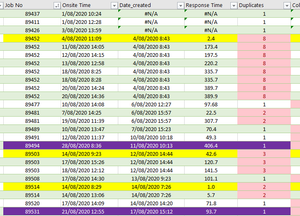
Outcome: I need to create a histogram showing response time in 24 hr blocks (bin size of 24) from column 'Response Time' in sheet 'Mobile Status Log'. This sheet contains both columns populated by Power Query and manual columns to identify valid records and for (selected columns) become the source for the graph.
Columns of interest are: 'Onsite Time', 'Date_created', 'Response time'. 'Response time' = 'Onsite Time' less 'Date_created'. However not every record is valid.
What's a valid record? It's possible to have a few service trips per job and the system creates a time stamp every time a technician is onsite; 89452 in the original post is a good example where we have multiple onsite times against the same date_created timestamp. In cases like this I need to select the earliest Onsite Time; i.e. 4/8/2020 11:09 in the example.
mtarler's solution works and all valid records get tagged '0' and I can select these to create the histogram. Thanks for that!
However given I'm in the midst of learning Power Query I was wondering how to do this by adding a conditional column 'Valid Record' with values of 'yes' / 'no' to then allow me to only pull records tagged 'yes'. So in other words all that's left is to pull selected columns to create the presentation (histogram in this case).
Is that possible? Is there a smarter way of doing this?
- Riny_van_EekelenOct 15, 2020Platinum Contributor
tfmeier Played around with your files a bit and revised parts of the queries to arrive at a table "Merge1". Hopefully, it helps you exploring PQ further. You will notice that merging queries (the correct way) eliminates the need for VLOOKUP outside the PQ tables.
Just point the source for each of the queries to the files on your own system and you should be able to see the end result and follow through all the steps.
- tfmeierOct 15, 2020Copper Contributor
Thank you for that, Riny_van_Eekelen. So merged queries can combine data from different tables via a common key, Job no (Job id) in this case? Do the common columns always have the be in the first / most left column?
Also what's the purpose of "expand" in power query in layman terms?
Thanks again
- Riny_van_EekelenOct 15, 2020Platinum Contributor
tfmeier You can merge on the basis of any column as long as you expect them to have common values. So, you can merge the third column from one table called "JobNo" with e.g. the 10th column from another called "JobCode", as long as these columns use the same codes. Otherwise, you'll never find a match. You can also merge on the basis of multiple columns.
Merging can be done in several ways (outer, inner, full and anti). In simple terms, it adds a new column to the first table that in itself is a table of matching records. These can then be expanded so that matching records are "joined" side by side. Similar to what you would do with VLOOKUP.
There are many PQ tutorials on line. This particular one I found very useful myself.