Forum Discussion

fetch the rows that match the searched value
- Oct 23, 2022
If you have Microsoft 365 of Office 2021, you can use
=FILTER(Combined_tblFinancials[[itemCode]:[itemDescTr]],Combined_tblFinancials[Symbol]=A1)
If you use comma as decimal separator:
=FILTER(Combined_tblFinancials[[itemCode]:[itemDescTr]];Combined_tblFinancials[Symbol]=A1)
See the attached workbook.


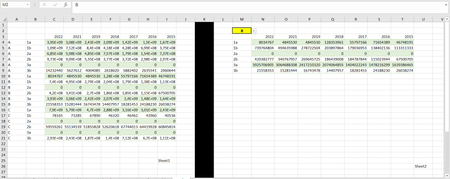
The easiest way would be to use the FILTER() function. However, this is somewhat newer and is therefore not yet available to everyone. If it works for you, you can use the following function in cell M4. Please copy the header rows from the original data.
=FILTER(B4:I21,A4:A21=M2)If you can't use FILTER() yet, please give some feedback.

Unfortunately I tried what you said but it didn't work, I think it doesn't happen because I want to do it on a separate page.
I have attached my sample excel file.
- HansVogelaarOct 23, 2022MVP
If you have Microsoft 365 of Office 2021, you can use
=FILTER(Combined_tblFinancials[[itemCode]:[itemDescTr]],Combined_tblFinancials[Symbol]=A1)
If you use comma as decimal separator:
=FILTER(Combined_tblFinancials[[itemCode]:[itemDescTr]];Combined_tblFinancials[Symbol]=A1)
See the attached workbook.
- deniztopcuOct 23, 2022Brass Contributorthank you for your answers.
my problem is solved.