Forum Discussion

Excel White\Blank Screen
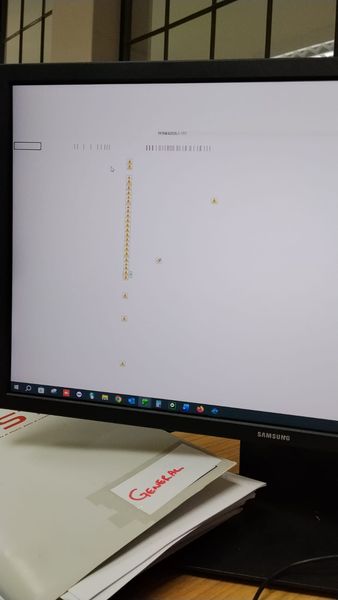

I tried everything. Nothing is working.....
- NikolinoDEApr 18, 2026Platinum Contributor
Thank you for the feedback – it's certainly frustrating when standard solutions don't work, especially after trying so many steps. The only thing I, as a regular user, can suggest are some additional steps that might help.
Since we have exhausted the basic configuration checks (Add-ins, Registry reset, Printer drivers) and the issue persists across multiple files, we need to look at deeper system-level corruption or conflicts.
Because the "Disable Hardware Graphics Acceleration" option was removed from the Excel menu in recent updates, we have to use more robust methods to force that setting or repair the core engine.
Please try these three solutions in this specific order. They are the definitive steps for cases where the white screen resists typical fixes.
1. Perform an "Online Repair" (The most thorough non-destructive fix)
Since files open but don't render, the core rendering engine or a dependency is likely corrupted. A standard "Quick Repair" often misses this; we need the "Online Repair," which completely replaces the Office installation files.
How to do it:
- Close all Office applications (Excel, Word, etc.) and ensure no EXCEL.EXE processes are running in Task Manager.
- Open Windows Settings > Apps > Installed apps (or Apps & features in Windows 10).
- Find your Microsoft 365 or Office 365 installation in the list.
- Click the three dots (...) next to it (or the "Modify" button) and select Modify.
- Crucial Step: Select Online Repair (do not select Quick Repair).
- Note: This requires an active internet connection. It will download fresh installation files and may take 30–60 minutes, but it is the most thorough fix available without a full uninstall.
- Click Repair. Once finished, restart your PC and test Excel.
2. Force Disable Hardware Acceleration via Registry (The "Hidden" Fix)
You are correct that Microsoft removed the checkbox from the UI. However, the underlying registry key still exists and functions. We can force this setting manually. This is often the "magic bullet" for the white screen issue on modern Office 365 builds.
Warning: Please back up your registry before proceeding.
Steps:
- Press Windows Key + R, type regedit, and press Enter.
- Navigate to the following path (copy/paste this into the address bar at the top of the Registry window):
Computer\HKEY_CURRENT_USER\Software\Microsoft\Office\16.0\Common\Graphics
(Note: If the "Graphics" folder does not exist under "Common", right-click "Common" > New > Key and name it "Graphics"). - In the right pane, right-click an empty space > New > DWORD (32-bit) Value.
- Name the value exactly: DisableHardwareAcceleration
- Double-click the new entry and change the Value data to 1.
- Click OK, close the Registry Editor, and restart Excel.
3. The "Clean Boot" (To isolate third-party interference)
If the above fails, a background application (Antivirus, PDF software, or a shell extension) might be "hooking" into Excel and crashing the renderer before it even draws the screen.
How to do it:
- Press Windows Key + R, type msconfig, and press Enter.
- Go to the Services tab.
- Check Hide all Microsoft services (this is crucial to avoid breaking Windows functionality).
- Click Disable all.
- Go to the Startup tab and click Open Task Manager.
- Disable every startup item listed (right-click > Disable).
- Restart your PC.
- Try opening Excel immediately. If it works now, one of the disabled services/apps was the culprit. You can re-enable them one by one to find the offender (common culprits are iCloud, Dropbox, or Antivirus).
If the Online Repair (Step 1) does not work, the Registry fix (Step 2) is statistically the most likely to solve a persistent white screen where the UI option is missing.
If none of these three steps work, the issue is isolated to your Windows User Profile. The fastest way to confirm this is to create a new temporary local user account in Windows.
My answers are voluntary and without guarantee!
Hope this will help you.
