Forum Discussion

Excel sum functions
 May 29, 2024
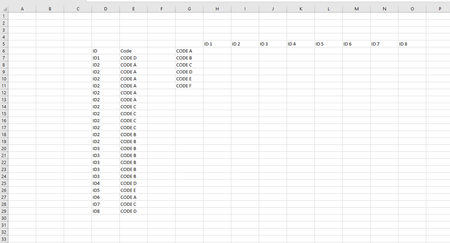
=NB.SI.ENS($D$7:$D$29;H$5;$E$7:$E$29;$G6)
This formula works in the attached sample file. Please note that the IDs in the file are always entered without a space for example ID1 in cell H5. In your screenshot there is for example ID 1 in cell H5 which wouldn't work because it doesn't match the entries in column D (ID column).

Example
Suppose you have a table like this in your Excel sheet:
Category | Status |
Apple | Sold |
Banana | Available |
Apple | Sold |
Banana | Sold |
Apple | Available |
And you want to count occurrences in another table:
Sold | Available | |
Apple | ||
Banana |
To fill in the values, use the formula in the appropriate cells of your counting table:
(French Formulas)
For "Apple" and "Sold":
- Cell (H5 = "Apple", I5 = "Sold"):
=NB.SI.ENS($A$2:$A$6, "Apple", $B$2:$B$6, "Sold")
For "Banana" and "Available":
- Cell (H6 = "Banana", I6 = "Available"):
=NB.SI.ENS($A$2:$A$6, "Banana", $B$2:$B$6, "Available")
AutoFill Formula:
Once the formulas are set for the first cell, you can drag the formulas across and down to auto-fill the remaining cells.
By using the COUNTIFS function properly, you can count based on multiple criteria in your data set efficiently. The text was created with the help of AI.
If you want to translate the formulas goes here: Excel-Translator Français
My answers are voluntary and without guarantee!
Hope this will help you.
Was the answer useful? Mark as best response and like it!
This will help all forum participants.