Forum Discussion

EXCEL Homework help
- Nov 07, 2023
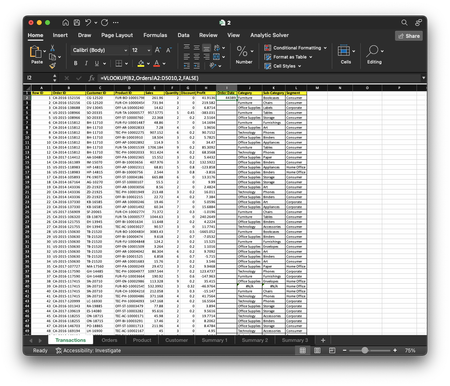
Your formulas still have relative references to the lookup ranges, so they will change when you fill or copy down the formulas.
The formula =VLOOKUP(D2,Product!A159:D2052,2,FALSE) in J2 will change to =VLOOKUP(D3,Product!A160:D2053,2,FALSE) in D3, ..., and to =VLOOKUP(D200,Product!A357:D2250,2,FALSE) in J200.
So if D200 is in Product!A100, the formula won't find it since it starts looking from A357 down. Hence the #N/A errors.
Please read my previous reply again. I explained how to change the reference to the lookup range to absolute.

Your formulas still have relative references to the lookup ranges, so they will change when you fill or copy down the formulas.
The formula =VLOOKUP(D2,Product!A159:D2052,2,FALSE) in J2 will change to =VLOOKUP(D3,Product!A160:D2053,2,FALSE) in D3, ..., and to =VLOOKUP(D200,Product!A357:D2250,2,FALSE) in J200.
So if D200 is in Product!A100, the formula won't find it since it starts looking from A357 down. Hence the #N/A errors.
Please read my previous reply again. I explained how to change the reference to the lookup range to absolute.

-
Change the date column format to "short date":
- Select the date column.
- Right-click > Format Cells > Date > Choose format > OK.
-
Check VLOOKUP errors:
- Ensure lookup values match format.
- Confirm correct lookup range and column index.
- If using approximate match, ensure range is sorted.
By following these steps, you should be able to correct the date format and resolve the #N/A errors in your VLOOKUP formulas. If anyone continues to have trouble, feel free to hire an Excel expert to further investigate the details or formulas.