Forum Discussion

Excel for MAC number format

1. Reset cell formatting
Select the cell in question
Press Command+1 to bring up the Format window
Select Numeric > General to reset the formatting
Re-apply the required formatting
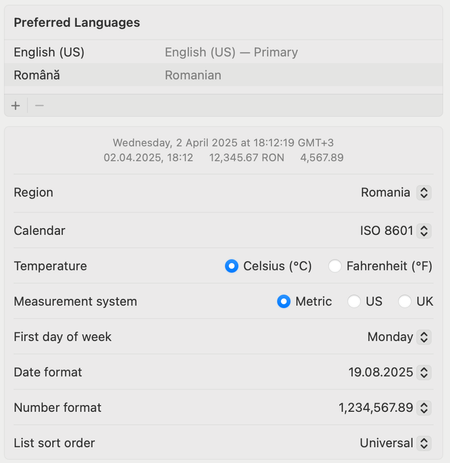
2. Check system locale settings
Open System Preferences > Languages & Locales
Ensure that: the locale matches the business requirements
The number/date formatting is set correctly
3. Specific problem handling
Number to date problem
Enter single quotes before typing : '20240304
or set the cell format to "Text"
4. Decimal place anomaly
Use explicit formatting code:
#,##0.00_);(#,##0.00)
Fixed by formula:
=FIXED(A1,2)
5. Customized formatting failure
Check the syntax of formatting code:
Positive; Negative; Zero; Text
Avoid using Windows specific code
6. Advanced Solution
Method A: Create style template
Home > Style > New Style
Save common number format combinations
Apply to target area with one click
Method B: Use AppleScript to batch repair
applescript
tell application "Microsoft Excel"
set number format of selection to "#,##0.00"
end tell
7. Cross-platform compatibility advice
Avoid using Mac-specific symbols (e.g. ¤)
Check the box when saving an important file:
"Keep Windows-compatible formatting"
Use common formatting code:
0.00E+00 (scientific notation)