Forum Discussion

Excel Desktop Filter Checkboxes Not Visible – Windows 11 / Office Home & Student 2021
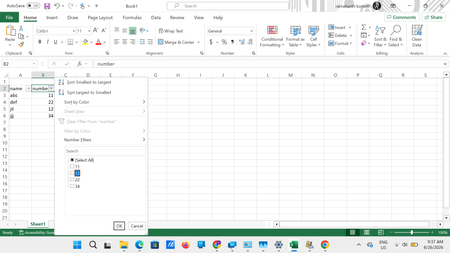

Because filtering works and Excel for the web renders the workbook correctly, the data is intact; this is a control-rendering problem. Start Excel with Windows+R, enter excel /safe, and test the dropdown. Safe mode bypasses most add-ins and startup settings. If checkboxes return, disable COM and Excel add-ins, restart normally, and re-enable them individually. If they remain invisible, set Windows display scaling to 100 percent, test on one monitor, turn off contrast themes and color filters, and update the graphics driver from the PC or GPU manufacturer. In Excel Options > Advanced > Display, test Disable hardware graphics acceleration if available, then restart. Also test Microsoft XPS Document Writer as the default printer because Office layout can depend on printer and display drivers. Since reinstalling Office and a new profile did not help, avoid more registry edits. Record the Office build, GPU driver, scaling, and safe-mode result for Microsoft Support.