Forum Discussion

pthongmak01
Aug 15, 2024Copper Contributor
Excel conditional formatting
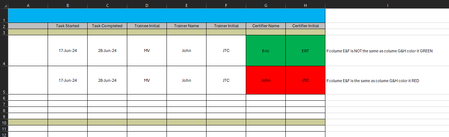
Please help with conditional formatting rules. In our unit the trainer can not be the same as the certifier. I manually colored it to what I wish to see. Thank you a TON in advance!!

JKPieterse
Aug 15, 2024Silver Contributor
- Select cells in column G, starting from row 4
- Choose Home, Conditional Format, New Rule, set these options:
- Repeat step 1 and 2, this time set it to this:
NB: My screenshots were taken before looking closely at yours. The 2's in my conditional format rule formulas must be replaced by 4's.

pthongmak01
Aug 15, 2024Copper Contributor
Thank you so much for a quick response!
However; after trying out the new rules I forgot to mentioned the third line, please see the picture.
Also instead of selecting column G, starting from row 4, can I just select the entire row G for faster application? There are hundred of rows in the real excel and there are many excel sheets I need to apply this rule to.
Thank you!!!
- m_tarlerAug 15, 2024Silver Contributorin that case ignore my comment above.
yes the formula can be made to ignore the first 3 rows but you will have to use row 1 in the formula so something like = (G1<>E1)*(ROW(G1)>3)*(G1<>"")
but my question is if both G and H should be green/red based on G alone or not. For example could you have G4=E4 but H4<>F4 and therefore want the cells to be RED and GREEN respectively? If so the 2 conditional formatting formulas are
Highlight entired columns G:H then
for GREEN:
= (G1<>E1)*(ROW(G1)>3)*(G1<>"")
for RED:
= (G1=E1)*(ROW(G1)>3)*(G1<>"")- pthongmak01Aug 15, 2024Copper ContributorThank you for the response,
Yes we can make G and H be green/red based on G.- m_tarlerAug 15, 2024Silver Contributorif you want both columns G and H to depend on ONLY col G vs col E then
Highlight entired columns G:H then
for GREEN:
= ($G1<>$E1)*(ROW(G1)>3)*($G1<>"")
for RED:
= ($G1=$E1)*(ROW(G1)>3)*($G1<>"")
as you can see the only change was adding those $ signs.
