Forum Discussion

Excel Compare Data
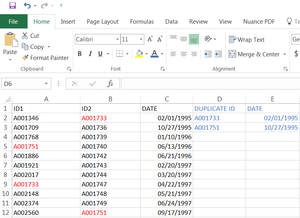
 Dec 01, 2017
Arnold,
Step 1
Put this formula in cell D2 and fill it down:
=IF(ISNUMBER(MATCH(B2,$A$2:$A$200,0)),B2,"")
Don't forget to change this range $A$2:$A$200 to your existing range.
Step 2
Put this formula in cell E2 and fill it down:
=IF(D2<>"",C2,"")
Step 3
Sort column E from A to Z, or column D from Z to A, to move the duplicate values to the top.

I think what I want is that the new inserted column will also appear on the last column G. The same concept that we did in column D & E before (these columns are now E & F because I inserted a column (c), but this time will have 3 results in ( E, F, G) G would be the serial number that came from column C. I attached an example. So I think we need a formula in column G for the SN-ID2 in column C to appear in column G. These are the formula that we have so far:
Column E
=IF(ISNUMBER(MATCH(B2,$A$2:$A$2067,0)),B2,"")
Column F
=IF(D2<>"",IF(E2<>"",D2,""),"")
Column G?
Thanks.
Please find the solution in the attachment file.
- Arnold LopezDec 08, 2017Copper Contributor
I was able to sort them this time without the other columns disappearing. I also used Notepad ++ to fix the blank spaces then recopied it back to Excel for my reports.
Thank you so much for your help.
- Haytham AmairahDec 08, 2017Silver Contributor
They didn't disappear, but moved down and dispersed.
To move them back to the top, sort column A (ID1) from A to Z, or Column E (Duplicate ID) from Z to A.
- Arnold LopezDec 07, 2017Copper Contributor
Great, thank you! I got want I needed. I am having just one more issue, the sorting. I was trying to sort the column F (dates) from Oldest to Newest, but every time I hit enter the columns E, F, and G are disappearing? Am I doing the correct sorting?