Forum Discussion

Excel Availability based on Date Ranges.
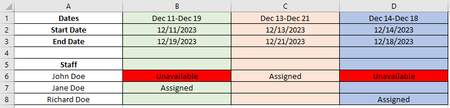

Uranimal Your example date ranges are curious, in that they each overlap -- so all staff member-by-date range cells in a row should be marked as "Unavailable" if any other such cell in that row contains "Assigned".
You don't say it explicitly, but you want the spreadsheet to react to changes in certain (staff member-related) cell content by conditionally changing the content of other cells in that row, based on the new value in the cell and the date ranges, but presumably not dependent on the content of cells for other staff members.
Changing the interior color to red for the "Unavailable" cells could be handled just by using conditional formatting. That's easy to do, though I do not recommend it in this case. And it does not do the date-related calculations that you want.
Determining which date ranges the staff member is unavailable for, and changing those cells to "Unavailable" + red is just part of the logic needed. While it might be possible with lengthy formulas, this situation calls for VBA code and a macro-enabled worksheet (though using code does mean you must think about security). I have written VBA code to do that determination. But beyond that requirement, think through these:
- If you* remove "Assigned" for a date range, all "Unavailable" cells dependent on that date range blocking (and has no blocking due to other date range assignments) should be cleared, and their interior color restored. I have written code for that, relying on the color for the Start Date cell.
- Will you record an additional notation (e.g., "Reserved") for dates that cannot be assigned, e.g., due to vacation or medical leave? The VBA code would need to treat such cell values differently. And if you do that, will you need to record additional, more-specific date ranges? An alternative is to include a second spreadsheet to record those restrictions, and make the overlapping date range logic refer to it as well (that's more complicated).
- What should happen if you enter other meaningful-to-you text** in one of these cells, and the code -- because of an assignment for that staff member that is recorded later -- determines that the cell should be flagged for blocking?
- What should happen if you overtype "Unavailable" with "Assigned", or anything else? I have written code to prevent that, using Excel's worksheet protection feature (without a password) and cells' Locked status. But in case you find its behavior somehow annoying, there is one line of code to turn it off.
- What should happen if you paste "Assigned" into multiple cells at once (or drag and copy), causing a conflict? Should the conflicting assignments be cleared or specially colored, or a warning message be issued?
- What should happen if you add a date range at the end (i.e., to the right)? What should happen if you add a date range in the middle? Either of those could very much complicate the required code, so I have a suggestion: Include a button (with underlying code) to validate all the date ranges and then, if they are valid, recalculate availability for the entire worksheet.
- What should happen if you change one or more date ranges, in particular, if someone has already been assigned work in that range? I don't think I would want to write code (for free) that "remembers" the old date range and works out resulting data problems.
* you or any other person editing the spreadsheet, but I will continue to refer to "you"
** even a misspelling of Assigned (My code ignores differences in capitalization of this special word, and ignores leading and trailing spaces.)
To use the code I have written, you can (cautiously) use the attached workbook. Or, you can review the code below and add it to your workbook:
- Make a backup copy of your workbook.
- Save the workbook as a macro-enabled workbook (most likely with an .xlsm extension).
- Right-click the tab of your schedule worksheet. In the context (popup) menu that appears, click "View Code". The VBA Editor is opened to show code for that worksheet.
- At the top of the code window are two dropdown lists. The left one will initially read "(General)", and the right one "(Declarations)". Beneath them, in the code area, if you do not see the line "Option Explicit" (without the quotes), type it. That statement helps you detect and correct significant spelling errors in the code to follow.
- From the left dropdown list, select Worksheet. (Two/three lines of code are generated immediately for a Worksheet_SelectionChange procedure, but are not significant, and can be deleted later.)
- In the right dropdown list, select Change. More code is generated. So the code window should now appear like one of the following two images. (The upper one is Full-Module view; the lower one is Single-Procedure view. You can switch between the two using buttons at the bottom left of the code window.)
- At this point, you may delete the Worksheet_SelectionChange procedure, but that's not required.
- Within the Worksheet_Change procedure, paste the following code:
' The following values/objects, if calculated, do not
' change during one execution of this event handler.
Dim in4BottomStaffRow As Long
Dim in4LastDateColumn As Long
Dim strLastDateColumn As String
Dim objRangeOfInterest As Range
Dim objUpdatedRange As Range 'that portion of the range of _
interest that was updated
' The following values/objects may change multiple times
' during one execution of this event handler.
Dim strCellAddress As String
Dim in4Row As Long
'----
If mblnChangesAreDueToCode Then
Exit Sub
End If
'---- Determine some characteristics of the worksheet.
' Find the bottom data row by looking for the last (consecutive)
' row with a non-blank Staff Member cell.
strCellAddress = strCOL_STAFF_MEMBER & CStr(in4ROW_TOP_OF_STAFF)
in4BottomStaffRow = Range(strCellAddress).End(xlDown).Row
' Find the last data column by looking for the last (consecutive)
' column with a non-blank cell in the row containing Start Dates.
strCellAddress = strCOL_LEFTMOST_DATE & CStr(in4ROW_START_DATE)
in4LastDateColumn = Range(strCellAddress).End(xlToRight).Column
strCellAddress = Cells(1, in4LastDateColumn).Address
strLastDateColumn = Mid$(strCellAddress, 2, _
InStr(2, strCellAddress, "$") - 2)
' --
Set objRangeOfInterest = Range(strCOL_LEFTMOST_DATE _
& CStr(in4ROW_TOP_OF_STAFF) & ":" _
& strLastDateColumn & CStr(in4BottomStaffRow))
'---- See if any of the changed cells are in the range of interest.
Set objUpdatedRange = Intersect(Target, objRangeOfInterest)
If objUpdatedRange Is Nothing Then
'...changes were made to the worksheet, but not within the
' range of interest.
Else
Call RecalculateBlocking(objUpdatedRange, in4LastDateColumn)
End If
9. Go back to the "(General)" section of code. After the "Option Explicit" statement, paste the following code:
'==== CONSTANTS
'---- Structure of the Schedule worksheet:
Private Const in4ROW_START_DATE As Long = 2
Private Const in4ROW_END_DATE As Long = 3
Private Const in4ROW_TOP_OF_STAFF As Long = 6
Private Const strCOL_STAFF_MEMBER As String = "A"
Private Const strCOL_LEFTMOST_DATE As String = "B"
Private Const in4COL_LEFTMOST_DATE As Long = 2
'----
Private Const blnUSE_WORKSHEET_PROTECTION As Boolean = False
'==== MODULE-SCOPE VARIABLES
Private mblnChangesAreDueToCode As Boolean
10. Review the values in the "Private Const" statements at the top, and change them as needed to match your schedule worksheet. If you decide to use worksheet protection, you can later change the value of blnUSE_WORKSHEET_PROTECTION from False to True, but other changes to the worksheet must be made first. Ask about those changes later if interested.
11. Paste the following procedures either before or after the Worksheet_Change procedure:
Function DateRangesOverlap(ByVal StartDate1 As Date, ByVal EndDate1 As Date _
, StartDate2 As Date, EndDate2 As Date) As Boolean
Dim blnReturnValue As Boolean
'----
If StartDate1 >= StartDate2 _
And StartDate1 <= EndDate2 Then
'...the first range starts within the second range.
blnReturnValue = True
ElseIf StartDate2 >= StartDate1 _
And StartDate2 <= EndDate1 Then
'...the second range starts within the first range.
blnReturnValue = True
' These remaining checks are unlikely to be true, but the
' scheduling data could be badly constructed.
ElseIf StartDate1 < StartDate2 _
And EndDate1 > EndDate2 Then
'...the first range completely encompasses the second.
blnReturnValue = True
ElseIf StartDate2 < StartDate1 _
And EndDate2 > EndDate1 Then
'...the second range completely encompasses the first.
blnReturnValue = True
Else
blnReturnValue = False
End If
'----
DateRangesOverlap = blnReturnValue
Exit Function
End Function
Private Sub RecalculateBlocking(ByVal UpdatedRange As Range _
, ByVal LastDateColumn As Long)
' This procedure recalculates availability for the updated rows
' (those included in the specified range).
' Probably only one cell has changed, but the code has to
' assume that multiple cells might have been changed. Also,
' as multiple cells for a staff member may contain "Assigned",
' ...it gets complicated.
Dim in4ColorOfBlockedDates As Long
'
Dim colRowsToRecalc As Collection
Dim vntRow As Variant
Dim in4Row As Long
Dim in4Col As Long
Dim in4ColToRight As Long
'
Dim objCell As Range
Dim strCellContent As String
'
Dim dteCheckStart As Date
Dim dteCheckEnd As Date
Dim dteAssignedStart As Date
Dim dteAssignedEnd As Date
'----
in4ColorOfBlockedDates = vbRed
'...or, an interior color for which it is easier to read black text:
in4ColorOfBlockedDates = RGB(255, 75, 75)
' --
Application.ScreenUpdating = False
'---- Store the row numbers of rows with changes into a
' Collection object.
Set colRowsToRecalc = New Collection
For Each objCell In UpdatedRange
in4Row = objCell.Row
On Error Resume Next '...to handle errors due to duplicates
colRowsToRecalc.Add in4Row, Key:="R" & in4Row
On Error GoTo 0
Next objCell
'---- For each of those rows (in any order)...
If blnUSE_WORKSHEET_PROTECTION Then
ActiveSheet.Unprotect
End If
For Each vntRow In colRowsToRecalc
in4Row = vntRow
If in4Row < in4ROW_TOP_OF_STAFF Then
' This should not happen, but if it does...
GoTo ExamineNextRow
End If
' -- Clear "Unavailable" cells in this row.
in4Col = in4COL_LEFTMOST_DATE
Do
Set objCell = Cells(in4Row, in4Col)
strCellContent = objCell.Value
If StrComp(Trim$(strCellContent), "Unavailable" _
, vbTextCompare) = 0 Then '...found one.
mblnChangesAreDueToCode = True
If blnUSE_WORKSHEET_PROTECTION Then
objCell.Locked = False
End If
objCell.Value = ""
objCell.Interior.Color = Cells(1, in4Col).Interior.Color
mblnChangesAreDueToCode = False
End If
'
in4Col = in4Col + 1
Loop Until in4Col > LastDateColumn
'---- Then, working from left to right, calculate unavailability.
in4Col = in4COL_LEFTMOST_DATE
Do
dteCheckStart = Cells(in4ROW_START_DATE, in4Col).Value
dteCheckEnd = Cells(in4ROW_END_DATE, in4Col).Value
Set objCell = Cells(in4Row, in4Col)
strCellContent = Trim(objCell.Value)
If StrComp(strCellContent, "Assigned", vbTextCompare) = 0 Then
objCell.Interior.Color = Cells(in4ROW_START_DATE _
, in4Col).Interior.Color
GoTo ExamineNextColumn
End If
'
For in4ColToRight = 1 To LastDateColumn
If in4ColToRight = in4Col Then
GoTo NextCheckForOverlap
End If
strCellContent = Cells(in4Row, in4ColToRight).Value
If StrComp(Trim$(strCellContent), "Assigned" _
, vbTextCompare) = 0 Then
dteAssignedStart = Cells(in4ROW_START_DATE, in4ColToRight).Value
dteAssignedEnd = Cells(in4ROW_END_DATE, in4ColToRight).Value
If DateRangesOverlap(dteCheckStart, dteCheckEnd _
, dteAssignedStart, dteAssignedEnd) Then
Set objCell = Cells(in4Row, in4Col)
mblnChangesAreDueToCode = True
objCell.Value = "Unavailable"
objCell.Interior.Color = in4ColorOfBlockedDates
If blnUSE_WORKSHEET_PROTECTION Then
objCell.Locked = True
End If
mblnChangesAreDueToCode = False
Exit For
End If
End If
NextCheckForOverlap:
Next in4ColToRight
ExamineNextColumn:
in4Col = in4Col + 1
Loop Until in4Col > LastDateColumn
ExamineNextRow:
Next vntRow
If blnUSE_WORKSHEET_PROTECTION Then
ActiveSheet.Protect
End If
'
Application.ScreenUpdating = True
End Sub
Private Sub RecalculateBlockingForAll()
' This procedure recalculates date-range blocking for all staff-
' member rows. It is appropriately used if a date range has
' been changed or added
Dim strCellAddress As String
Dim in4LastDateColumn As Long
'---- Find the last data column by looking for the last
' (consecutive) column with a non-blank cell in the
' row containing Start Dates.
strCellAddress = strCOL_LEFTMOST_DATE & CStr(in4ROW_START_DATE)
in4LastDateColumn = Range(strCellAddress).End(xlToRight).Column
'----
Call RecalculateBlocking(ActiveSheet.UsedRange, in4LastDateColumn)
End Sub
Resave the workbook. Then you are ready for testing.