Forum Discussion

Excel 2016 Get data from PDF missing

You have a PDF file in front of you and would like to transfer data from it to Excel. There are two ways of doing this. In both cases, however, it must be a searchable PDF document, i.e. one in which the texts are available as texts - and not as an image, for example. Second, the creator of the PDF must not have applied any technical restrictions, such as a ban on copying data from it.
Trick for marking and copying: In common PDF viewers (e.g. Foxit Reader and Adobe Acrobat Reader DC) there is a problem when marking table contents in PDFs. Let's say you don't want all the data from this PDF, just a single column. If you start marking, you will notice that your PDF viewer marks all the line contents, see e.g. the lines marked in blue in the following screenshot.
There is, however, a shortcut that allows a surprising number of programs to be selected in columns. Press and hold the two keys Alt + Shift (Alt + Shift) with your left hand while using your right hand to highlight the numbers in the desired column using the mouse. As you can see, this allows vertical marking without including the columns on the left and right in the selection.
Copy the marked data with Ctrl + C (Ctrl + C) from the PDF and switch to your Excel table. Place the cursor in the cell from which the data should be inserted. Depending on the original material, try Ctrl + V (Ctrl + V) to paste the data. If all the numbers land in a single cell, go to Edit / Paste Special / Text. Voilà, the copied data ends up in Excel.
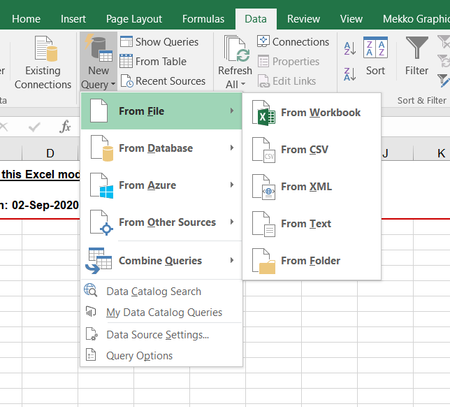
Excel import tool: In Excel from Office 365 (the version with subscription) there is another way. This is suitable if you want to adopt more than just one column. In the Data tab, go to Get Data / From File / From PDF / From PDF. Select the file that contains the data to be imported.
You end up in the Navigator, in which different areas of the PDF file are recognized as separate tables. Click on the different tables to see which one contains the data you want. If you simply want to take over all the data (and later delete what is superfluous), click on Load. The data is then imported as a finished table.
Would you like to leave out some data from the start or adjust the cell format now? Instead, click Transform Data in the Navigator. Excel opens the Power Query Editor, in which you can e.g. Manage via columns can remove individual columns or change their type by right-clicking on a column.
After adjusting the importable data, click on Close and Load.
Thank you for your understanding and patience
I would be happy to know if I could help.
Wish you a nice day.
Nikolino
I know I don't know anything (Socrates)
 pomygitOct 23, 2020Copper Contributor
Hi Nikolino
re your comment
Excel import tool: In Excel from Office 365 (the version with subscription) there is another way. This is suitable if you want to adopt more than just one column. In the Data tab, go to Get Data / From File / From PDF / From PDF. Select the file that contains the data to be imported.
the issue is that "get data from PDF file " is not an option for me. that means that it is not an option that appears in the drop down list.
My question is "why not?" .... since I pay a subscription to have the current updates - it is not an old version of Excel unless I am being duped or unless there is some form of bolt on addition that I am unaware that I have to install.
My other respondent to this question is considering my actual question - so fingers crossed something comes to light
- SergeiBaklanOct 23, 2020Diamond Contributor
In subscription model new functionality is deployed by channels and gradually.
Channels are for Office Insiders and Production channels. Insiders receive new functionality first, but pay for that by some lost of reliability and by compatibility with the rest of users.
In production more Current channel is updated more often (on monthly basis). You are on semi-annual channel which is updated with new functionality twice per year, in the middle mainly bugs fixing. Next update will be late spring next year as I remember, when you shall have Import from PDF.
Gradually means not all users on the channel receive updates simultaneously, deployment cycle takes some times, could be weeks.
Another option for you is to change the channel, that doesn't cost any money.
- pomygitOct 23, 2020Copper Contributor
This is all new information for me - so thank you.
Because I have a particular work issue that (I think) will benefit from this import of PDF
and because you advise that it costs no more money - may I ask if you could provide a link or explanation as to how I may change the channel so that I could get ahead on this problem...
I dont really understand the channel thing but my understanding from you is that I belong to a channel for a regular user, but a better channel may be one associated with more technical people such as yourself who have elected to be early adopters. If its just a matter of clicking a button somewhere I would do this
thanks
don
