Forum Discussion

Date calculation in single column
- Nov 25, 2021
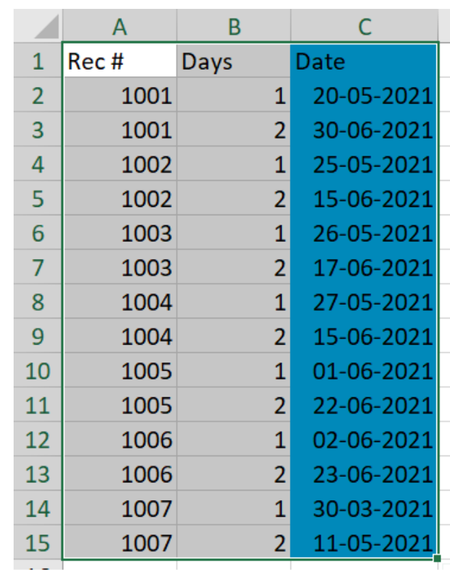
Excel First make sure that the ID's and dates are in order (they were in your example) by sorting first by ID, then by date. Then add a column to label each date as Day 1 or Day 2.
Now you can make a pivot table of the lot. ID in the Row field, Day in the Column field and Date in the value field (change it to Sum rather than Count) and format as a date. Add the Date again to the value field and set it to "Show data as", "Difference From", "Day", "1". Format the field as General.
Now you can over-write the default headers of the pivot table to something more meaningful, and in this particular case I have hidden column H as it has no relevant data (just blanks).
Now, all of this can probably be done more robust via Power Pivot and/or Power Query, but I haven't looked into that.

Here is a attached file -

Excel First make sure that the ID's and dates are in order (they were in your example) by sorting first by ID, then by date. Then add a column to label each date as Day 1 or Day 2.
Now you can make a pivot table of the lot. ID in the Row field, Day in the Column field and Date in the value field (change it to Sum rather than Count) and format as a date. Add the Date again to the value field and set it to "Show data as", "Difference From", "Day", "1". Format the field as General.
Now you can over-write the default headers of the pivot table to something more meaningful, and in this particular case I have hidden column H as it has no relevant data (just blanks).
Now, all of this can probably be done more robust via Power Pivot and/or Power Query, but I haven't looked into that.
- ExcelNov 25, 2021Iron ContributorThank you so much sir.