Forum Discussion

Create a Power query or Dax to find Open Status more than 1 hour
- Feb 14, 2025
With Power Query that could be like
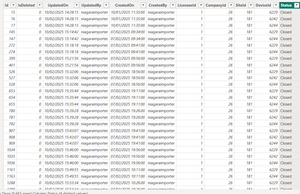
let Source = Csv.Document(File.Contents("C:\Test\Door.csv"),[Delimiter=",", Columns=12, Encoding=1252, QuoteStyle=QuoteStyle.None]), PromotHeaders = Table.PromoteHeaders(Source, [PromoteAllScalars=true]), SelectColumns = Table.SelectColumns( PromotHeaders, {"DeviceId", "CreatedOn", "Status"}), TrueToOpen = Table.ReplaceValue(SelectColumns,"true","Open",Replacer.ReplaceText,{"Status"}), FalseToClosed = Table.ReplaceValue(TrueToOpen,"false","Closed",Replacer.ReplaceText,{"Status"}), DeclareType = Table.TransformColumnTypes( FalseToClosed, { {"DeviceId", Int64.Type} , {"CreatedOn", type datetime} }), #"Grouped Rows" = Table.Group( DeclareType, {"DeviceId"}, { {"Data", each [ tbl = _, //// Buffer = Table.Buffer( Table.Sort(tbl,{{"CreatedOn", Order.Ascending}}) ), Created = Table.Column( Buffer, "CreatedOn" ), Status = Table.Column( Buffer, "Status" ), SumTime = List.Generate( () => [TM = 0 , nRow = 0 ], each [nRow] < List.Count(Created), each [ TM = if Status{[nRow]} = "Closed" then 0 else [TM] + Duration.TotalMinutes( Created{[nRow]+1} - Created{[nRow] } ) , nRow = [nRow] + 1 ], each [TM] ), ExpandTable = Table.FromColumns( Table.ToColumns(Buffer) & {SumTime}, Table.ColumnNames(Buffer) & {"OpenMinutes"} ), MinutesType = Table.TransformColumnTypes( ExpandTable, {{"OpenMinutes", Int64.Type}}) ][MinutesType] } ///// }), AddOpenInMinutes = Table.ExpandTableColumn( #"Grouped Rows", "Data", {"CreatedOn", "Status", "OpenMinutes"}, {"CreatedOn", "Status", "OpenMinutes"}), ChangeType = Table.TransformColumnTypes( AddOpenInMinutes, { {"CreatedOn", type datetime} , {"Status", type text} , {"OpenMinutes", Int64.Type} }), FixInMemory = Table.AddIndexColumn(ChangeType, "Index", 0, 1, Int64.Type), SortTable = Table.Sort( FixInMemory, { {"DeviceId", Order.Ascending} , {"CreatedOn", Order.Ascending} }), RemoveIndex = Table.RemoveColumns(SortTable,{"Index"}) in RemoveIndex- source is exported from your model to csv (attached)
- above is done in Excel (attached)
- On first Closed after Open we add minutes, after that reset them

Hi SergeiBaklan ,
Many thanks for your response!
Thats amazing solution that you gave in excel within a short period of time😍
Sir, can i use this in power query code in my power bi report and what should i edit only the source?
when i use in my power bi PQ, it shows below error
Please advise sir!
Thanks in advance!

Could you please attached query as text file; or directly into the post using this icon
and selecting Power Query as language
- Excellove15Feb 14, 2025Iron Contributor
Hi SergeiBaklan Sir,
This is an amazing solution and wonderfully crafted!🤩
You are truly a masterpiece and i still can't believe that this issue got resolved.
You came like a saviour for this community! If you are in linkedin please provide me your id so that i can write a short endorsement for your "Community Building" or "Power BI" skills.
Your guidance saved me hours of frustration—I really appreciate your expertise!
I just added a calculated column on this table to give a finishing touch for alert:Just for my knowledge, Still wondering how you created below:
How did you gain this power query knowledge sir? Any blogs or books would be greatly appreciated.
Big thanks to you once again!
I will close this query and mark it as best solution.
Thanks in advance!
Happy weekend
- SergeiBaklanFeb 15, 2025Diamond Contributor
Excellove15 , thank you.
List.Generate - that's known pattern used, for example, to calculate Running Total. These days it's hard to generate something actually new, you always could find the pattern closed to your needs, modify and use it.
Power Query - I'm not sure on which level you are. Perhaps more universal resource is BI Gorilla by Rick de Groot. From scratch you may start from What is Power Query: A Beginner's Guide [2024], at these page Best Resources to Learn Power BI in 2024 (incl DAX, M) other valuable resources. Documentation is under Power Query M formula language reference - PowerQuery M | Microsoft Learn and in more details at Rick's resource Power Query How - Home of the M Language . As next step select one or two resources mentioned in above and subscribe on blogs, it always something useful appear.
Endorsement - these activities for me hobby, not business, I'm not looking for popularity. Your "thank you" if I was able to help is enough. On LinkedIn I'm not active. my profile, if you are interesting, https://www.linkedin.com/in/baklan/
- Excellove15Feb 17, 2025Iron Contributor
Hi SergeiBaklan Sir,
Many thanks sir!😊
It means a lot to me! I have marked this as best solution
I have followed you on Linkedin sir. Also i have taken note of these study links and i will study. Your guidance means a lot to me.
Many thanks Sir!
- Excellove15Feb 14, 2025Iron Contributor
Hi Sir,
Somehow, i was able to use this Power query code in power bi file!😍
Rightnow am testing this and i will get back soon!
Thanks in advance sir!