Forum Discussion

Conditional Formatting Rules randomly being deleted, not by a person, on shared workbook
 Jan 15, 2025
Wanted to follow back up for anyone's interest or to benefit others. I believe I found a workaround/band-aid solution. See below "TLDR" to jump to this.
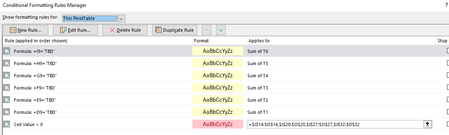
I haven't confirmed this with our IT department, but as far as I know everyone in our company is on the same 365 version and I would think we're all on the same desktop app version as that is all controlled by their policies. We do have a few users on Macs. But some of the above suggestions did get me thinking it had something to do with people editing the spreadsheet in the online/browser version vs the Desktop App, which is what I typically prefer to use. I tried to switch myself to the online/browser version and realized then that I couldn't even create a conditional formatting rule that used a formula for the condition or gives the option on the "Applies to" for Pivot Table options (see screenshot). So, I started to guess when a user refreshed all pivot tables in the sheet from the online/browser version, Excel would remove the rules that used either of these features.
TLDR: Workaround/"Solution" - I created a Welcome tab/page in the spreadsheet (see screenshot) and instructed users to open the sheet in the Desktop app. In the Browser View Options (File>Info), I deselected all of the other sheets except for this one. For the past couple of days, the formatting seems to be sticking and I haven't had any reports that anyone has been unable to edit/access the sheet. Fingers crossed this works, but certainly isn't an idea long term solution and would really be ideal if Microsoft could fix this.

Take this:
- Check for Updates: Ensure that all users have the latest version of Excel and Office 365 updates installed. Sometimes, bugs that cause issues like this are fixed in updates.
- Save as .xlsx: Make sure the workbook is saved in the .xlsx format, as older formats like .xls might not handle conditional formatting rules as well.
- Disable Shared Workbook Features: If you're using shared workbook features, try disabling them and see if the issue persists. You can do this by going to the Review tab and clicking on "Share Workbook."
- Use Excel Tables: Convert your data ranges into Excel tables. Tables have better support for conditional formatting and might help maintain the rules.
- Check for Conflicting Rules: Sometimes, conflicting conditional formatting rules can cause unexpected behavior. Review all the rules to ensure there are no conflicts.
- Save and Reopen: After making changes, save the workbook and reopen it to see if the rules are still intact.