Forum Discussion

Conditional Formatting Rules for Icon Sets
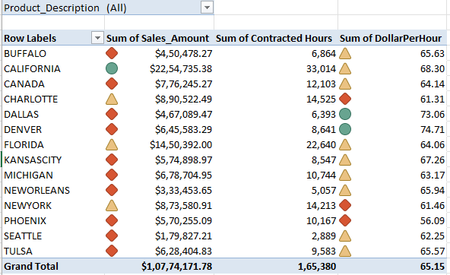

Hi, JKPieterse ,
applied your formula to calculate the Percentages. Pls see the Column E of the following screen shot :
I tried to calculate the Sales Amount Pct. The formula bar contains your formula.
All the Pct values in Col E, are appearing in Negative figure as we are deducting the Max value from the Current Value. Pls note that the Pct for Maximuam Amount is coming 0% and for Minimum Amount is coming 100%. However, if we remove the Minus sign by using ABS() Function, the resulting values do not qualify the formatting rule.
If the Formatting Rule follows the aforesaid calculation, the Sales amt of CANADA, DALLAS and DENVER, for example, should get "Green" icon because Sales Pct in Col E exceeds 67%.
I wish there should be some correction in the formula. Will wait for your reply.
Regards,
Somnath6309
- JKPieterseJul 22, 2025Silver Contributor
Right, yes, the denominator of the formula is wrong and should be reversed:
(MAX($B$4:$B$17)-B4)
- SergeiBaklanJul 19, 2025Diamond Contributor
It's not clear what you'd like to receive. Here
on the left "default" rule which applies green to the values for which
(value - min) / (max - min)
is greater than 66%, similar for next ones.
On the right we apply green to the values which are greater than 10% of total sum, yellow to ones between 5% and 10% of total sum, red to the rest.
Depends on goals you may generate another variants.

