Forum Discussion

Conditional formatting not working MS 365, Windows 10, PC
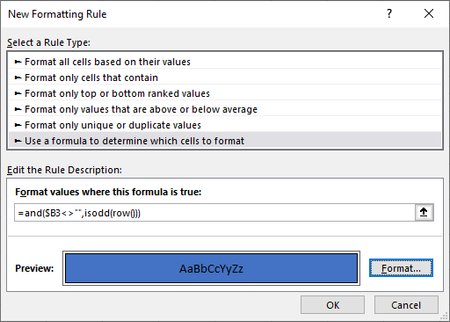

Thanks but I've watched this part over 20 times, he clearly states <Conditional Formatting>
I just noticed a small difference see red arrow, my version of Excel shows an Arrow pointing up, it only closes the New formatting window, only leaving a small window showing the lower part of the window.
Still having this issue 😞

Am trying to replicate what is shown on youtube ... at 29min 40 second
Sorry, I was watching at 2 minutes 40 seconds, which was not conditional.
But the video ENDS at 29 minutes.
And I'm not really interested in watching more YouTube. Can you describe what you want the formatting to be in your own words. And ideally provide a copy of the workbook you're working with so we can work on that WITH you. Post a copy on OneDrive or Google Drive, paste a link here that grants edit access to it. That way folks here can work with the actual, and work to accomplish the results you want.
I will say, that even though I use Conditional Formatting extensively, it often is elusive; I find I need to do a lot of trial and error, not always, but often enough...... So be patient with yourself.
But please, don't send us to watch a video and say you want that, without giving us the ability to see your actual workbook and work on it. Otherwise, the best we could say is "Follow what that video says." We can not possibly know what it is that you're doing that fails, since we don't see what you've done, what you're working with, and so forth.
Help us help you.
- pgg1507Dec 25, 2022Copper Contributor
Thank you so much for your assistance, here's a link to OneDrive see Employee Database, tab bottom
https://1drv.ms/x/s!Al7jijM2y6HHqla3YgGPdKQ1ygoa?e=8R5zIK
Am trying to format cells B3 to F20 (as an example)
Odd rows one color, Even rows a different color.
=and($E3<>"",ISEVEN(row()))
format Red
=and($E3<>"",ISODD(row()))
format yellow
😉
- mathetesDec 25, 2022Gold Contributor
Am trying to format cells B3 to F20 (as an example)
Odd rows one color, Even rows a different color.
If what you're really trying to do is just format odd rows one color, even rows a different color--and those colors are not in and of themselves important--there's a VERY SIMPLE way to do it.
On the Home toolbar, right next to conditional formatting, there's a box labelled "Format as Table" and when you highlight the area in question, and select that box, you get a host of optional formats, each of which involves alternating colors on the odd and even lines.
And a single click yields this kind of thing, as one example.
That said, if you really want to use Conditional Formatting, even though it's utterly unnecessary, your formulas were perfectly fine. I don't know what you were doing that caused them not to work; perhaps not highlighting the relevant cells to which the rules should apply. See the attached.
- mathetesDec 26, 2022Gold Contributor
Even better, I think, than "formatting as a table" is to create this AS a table. That allows for all of the wonderful things that Excel can do with tables, including automatically continuing the alternating colors in rows, as you add new rows ad infinitum.
To create it as a table, add a few rows of data, highlight those, along with the headers, and then from the "Insert" tool bar, pick "Tables" and "Table" and have your existing rows converted to table.
If, on the other hand, you have a fixed number of rows -- which seems unlikely for an Employee Attendance Record -- then those other methods would work as well. But as the former director of the HR/Payroll database of a major corporation (now long retired), I think creating all this as a table is the better course of action.
See attached