Forum Discussion

Conditional formatting for row based on one cells value compared to 2 other cells
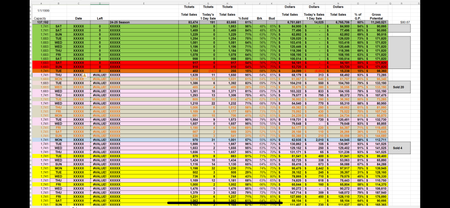

I don't understand - you describe conditions for 2 colors, but the colored screenshot has many different colors.
Try the following. If it does not do what you want, please explain in detail.
Select A9:P100 or however far down you want/need. The active cell in the selection should be in row 9, for example A9.
On the Home tab of the ribbon, click Conditional Formatting > New Rule...
Select 'Use a formula to determine which cells to format'.
Enter the formula
=$I9<$J9
Click Format...
Activate the Fill tab.
Select a fill color.
Click OK, then click OK again.
Repeat these steps, but with the formula
=$I9>=$K9
and a different fill color.
 The_lich_adventurerJun 13, 2025Copper Contributor
Thank you!!! This works wonderfully! For clarification, it’s really two colors- the other colors represent the same thing just depending on <30 days out or >30 days out, or 6 months, etc. (column D) Is there a way to incorporate that into the formula? The extra colors you see, blue and dark orange, are usually one offs for cancelations or rescheduling etc. so I’m not worried about those.
- HansVogelaarJun 13, 2025MVP
You can use formulas such as
=AND($I9<$J9, $D9<=30)
=AND($I9<$J9, $D9>30, $D9<=60)
etc.