Forum Discussion

Conditional Formatting case
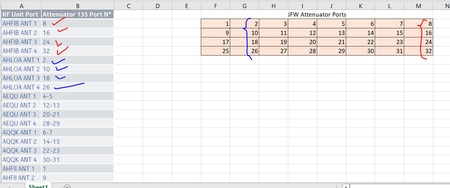

Conditional formatting changes the format (font, colors, bolding, etc.) of a cell, not (usually) the displayed value. So conditional formatting is not the solution.
To change the displayed value, you will need either:
- a formula, if your right-side grid will always contain predictable values (such as your SEQUENCE formula in cell F2 generates); or
- VBA code, if you expect the user to enter a value and then expect Excel to immediately do a lookup on that value to replace it.
The workbook I have attached uses formulas (actually, the same formula for all the cells in the lower grid; but if you reposition the grid, or if you need a different number of columns in the grid, you will presumably need to change the first calculation).
=LET( lookup_value, (COLUMN() - 5 + (ROW() - 😎 * 8),
    lookup_result, XLOOKUP(lookup_value, $B$2:$B$100, $A$2:$A$100, lookup_value, 0, 1),
    lookup_result)
But if the column B values sometimes represent a range of values (e.g., "4-5"), then you have a design problem – a number in the grid will not match the text value of a range in column B. You have options for changing the design to handle that. The simplest is just to not use ranges; duplicate the RF Unit Port as required, and use distinct integers in column B for each row. Alternatively, you could split column B into two columns, one for the minimum numeric value and one for the maximum numeric value, preferably using number format (General or Number, not Text) for both. (The grid formula for this technique would be slightly different.)