Forum Discussion

Combining and sorting workbooks based on a single common column header.
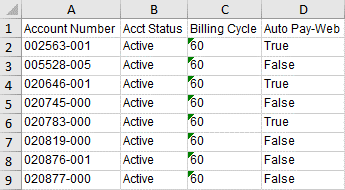

Good afternoon,
From what I can find, it does appear this should be completed with Power Query. I haven't found any instructions that show exactly the steps to take to combine these without the data from sheet 2 ending up below the data from sheet 1 on the resulting table. I've added 2 small test files in case that helps.
Here's a screenshot of what I can get if I instruct Power Query to keep all columns from both sheets. It's closer to what I need, but still not matching the data up across the rows.

May I clarify what is the logic of working with files.
- At any moment do you have only one Customer Info file and one PaperLess file, or you work with multiple files added to the folder from time to time?
- If multiple files is information about the same account shall be taken on the latest date of the file, or they are combined?
- What exactly "variable number of columns" means, is that for both type of files or only one and which columns are always fixed by name and position?
- Daniel1945Apr 19, 2024Copper Contributor
Good morning,
Once I'm up and rolling, this particular project will have 4 files that will contain different data, but all of them will have the same Account Number column. This will be the only common column between the 4 files. We will only have one copy of each file in out folder at once. I am not able to upload the files in their entirety because they have personally identifiable information.
When I said variable numbers of columns, I should have clarified, each file will have a different number of columns. My goal is to learn the process so that I can modify it to meet the requirements for different projects which is why I only uploaded 2 files with minimal columns. If the solution is custom for each set of files, I may need to rethink my plans.
- SergeiBaklanApr 19, 2024Diamond Contributor
If at any moment we have only one instance of each file type we don't need to use From folder connector. We may connect all of them based on Account Number column assuming it exists in each file.
Attached if the file which combines your sample files, to reproduce you only need to adjust the path on the folder the files.
It requires some M-script coding, I could explain details some later if the result is what we expect.
- Daniel1945Apr 19, 2024Copper ContributorSergeiBaklan
That's exactly what I was looking for. There will never be more than one instance of each file in the folder, all of them will need to be updated at the same time to remain relevant.
Reviewing the file you provided and looking through the steps I've tried, I can see how M-script coding is key, but it's definitely a new area to look into. Most everything I've learned about Excel has been trial and error with some bigger issues leaving me asking folks for help.