Forum Discussion

combine multiple text into single line of text
 Apr 11, 2026
Hello SP3990,
If you are using Excel 365 or Excel 2021, use:=TEXTJOIN(", ", TRUE, UNIQUE(A1:C10))
Replace A1:C10 with your actual range.
Explanation:
TEXTJOIN combines all values into one cell using a delimiter (", " in this case).
UNIQUE removes duplicate values from the selected range.
TRUE tells Excel to ignore empty cells.Optional enhancements:
To sort the result:
=TEXTJOIN(", ", TRUE, SORT(UNIQUE(A1:C10)))To use a line break instead of a comma:
=TEXTJOIN(CHAR(10), TRUE, UNIQUE(A1:C10))
(then enable Wrap Text)Note:
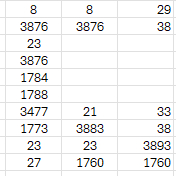
UNIQUE treats numbers and text differently. For example, 123 and "123" may be considered different values. If your data has mixed types, you may want to standardize them first.If you are on an older Excel version without UNIQUE or TEXTJOIN, the best alternative is to use Power Query to remove duplicates and combine values.
Hello SP3990,
If you are using Excel 365 or Excel 2021, use:
=TEXTJOIN(", ", TRUE, UNIQUE(A1:C10))
Replace A1:C10 with your actual range.
Explanation:
TEXTJOIN combines all values into one cell using a delimiter (", " in this case).
UNIQUE removes duplicate values from the selected range.
TRUE tells Excel to ignore empty cells.
Optional enhancements:
To sort the result:
=TEXTJOIN(", ", TRUE, SORT(UNIQUE(A1:C10)))
To use a line break instead of a comma:
=TEXTJOIN(CHAR(10), TRUE, UNIQUE(A1:C10))
(then enable Wrap Text)
Note:
UNIQUE treats numbers and text differently. For example, 123 and "123" may be considered different values. If your data has mixed types, you may want to standardize them first.
If you are on an older Excel version without UNIQUE or TEXTJOIN, the best alternative is to use Power Query to remove duplicates and combine values.
 SP3990Apr 11, 2026Brass Contributor
Hi. i tried the above. but the repeated values still showed. although i can work with it. Thanks i got what i wanted