Forum Discussion

CHANGING THE REFERENCE OF THE SHAPES WHEN THE SHAPES ARE DUPICATED
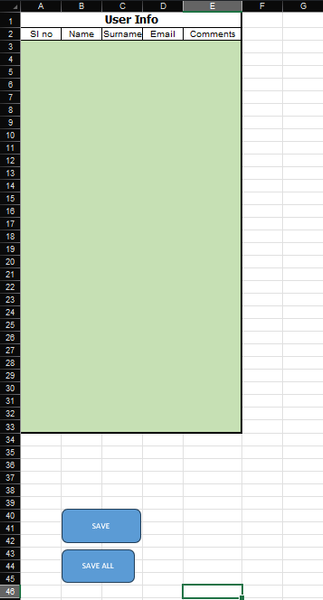

Hi NikolinoDE ,
thank you for your well explained response.
I would like to make clear with my requirement with a better explanation.
i have a sheet (source sheet) with the contents (template in my case) as in the first screenshot. as we see, there are some shapes in it. with a macro assigned to a button that doesn't change its position, i copy from the source sheet and paste in the target sheet. the first range always starts from a1:e49. for copy pasting the second time, i find the first cell in the last empty column and paste it. the second time the range will be from f1:j49. its not limited to just 2times but goes on.
my idea is to link the positions of the shapes to the column that i calculated above to paste the template.
save and save all are the shapes i used to run the macro. they are dedicated to individual users.
hope to hear from you. thanks again

To dynamically link the positions of shapes to the calculated column for pasting the template in the target sheet, we need to create a macro that:
- Finds the next empty column.
- Copies the template (including shapes) from the source sheet.
- Pastes it into the target sheet in the calculated column.
- Adjusts the references of the shapes according to their new positions.
Here is a VBA code snippet to achieve this:
Vba Code is untested backup your file first.
Sub CopyTemplateWithShapes()
    Dim wsSource As Worksheet
    Dim wsTarget As Worksheet
    Dim sourceRange As Range
    Dim targetRange As Range
    Dim lastCol As Long
    Dim shape As Shape

    ' Set your source and target sheets
    Set wsSource = ThisWorkbook.Sheets("SourceSheet") ' Change to your source sheet name
    Set wsTarget = ThisWorkbook.Sheets("TargetSheet") ' Change to your target sheet name

    ' Define the range of the template
    Set sourceRange = wsSource.Range("A1:E49")

    ' Find the last used column in the target sheet
    lastCol = wsTarget.Cells(1, wsTarget.Columns.Count).End(xlToLeft).Column

    ' Calculate the starting column for the new template range
    If lastCol = 1 And wsTarget.Cells(1, 1).Value = "" Then
        ' If the first cell is empty, start from column 1
        lastCol = 0
    End If
    Dim startCol As Long
    startCol = lastCol + 1

    ' Define the target range
    Set targetRange = wsTarget.Cells(1, startCol)

    ' Copy and paste the template range
    sourceRange.Copy
    targetRange.PasteSpecial Paste:=xlPasteAll

    ' Adjust shape positions
    For Each shape In wsSource.Shapes
        If Not Intersect(shape.TopLeftCell, sourceRange) Is Nothing Then
            shape.Copy
            wsTarget.Paste
            With wsTarget.Shapes(wsTarget.Shapes.Count)
                ' Calculate the new position
                .Top = wsTarget.Cells(shape.TopLeftCell.Row, startCol).Top
                .Left = wsTarget.Cells(shape.TopLeftCell.Row, startCol).Left
            End With
        End If
    Next shape

    ' Clear the clipboard
    Application.CutCopyMode = False
End Sub
Explanation:
- Set Source and Target Sheets:
- Assign the worksheets for the source and target.
- Define the Template Range:
- Specify the cell range that includes the template.
- Find the Last Used Column:
- Determine the last used column in the target sheet.
- Adjust for cases where the first cell might be empty.
- Calculate the Starting Column:
- Determine the starting column for the new template.
- Copy and Paste Template Range:
- Copy the template range from the source sheet.
- Paste it into the target sheet starting from the calculated column.
- Adjust Shape Positions:
- Loop through each shape in the source sheet.
- Check if the shape intersects with the template range.
- Copy and paste the shape into the target sheet.
- Adjust the shape’s position based on the new starting column.
Usage:
- Assign the Macro to a Button:
- In the source sheet, assign the CopyTemplateWithShapes macro to a button that users can click to copy and paste the template with shapes to the target sheet.
This approach ensures that shapes are dynamically linked and positioned according to the calculated column in the target sheet. The text, steps and the code were created with the help of AI
My answers are voluntary and without guarantee!
Hope this will help you.