Forum Discussion

changing Date format in a pivot table
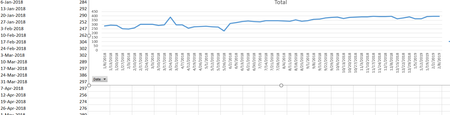
- Mar 04, 2019
In the attached file, all I did was:
- Right-click cell A4 and choose "Field Settings"
- Click the Number Format button
- Choose Date category and select "March 14, 2012"
- OK your way out.


I am using desktop version Excel for Mac.
I can not find any way to change date format. There is no option for that neither in PivotTable field settings nor in excel option.
SOS

Sorry, I don't use Mac. Riny_van_Eekelen , if you know.
- Riny_van_EekelenOct 28, 2021Platinum Contributor
SergeiBaklan AndreyKlepikov Try disabling "Automatic grouping of Date/Time columns in Pivot Tables", by checking the box shown at the bottom of the second picture. (Note: unchecked in my settings). This will stop Excel from adding Year and Month Fields when dates are put in the Rows or Columns field. Playing around with it a bit and it seems you need to re-build the Pivot Table with the new setting to take effect. Now you can format the date column to your own liking in the "Field Settings" for the Date.
Excel, Preferences, Tables and Filters,
PS: If you don't disable the automatic grouping (like in the picture above) and drag a Date into the Rows or Columns field in a pivot table, Excel will do the automatic grouping as expected. But, now you can press cmd-Z and the grouping will be removed. This will then allow you to change the date format under Field settings.
(Stumbled on to this by chance. Perhaps it also works on the PC, with Ctrl-Z. Not tested, though.)
