Forum Discussion

Cell selection problem
- Jun 25, 2025
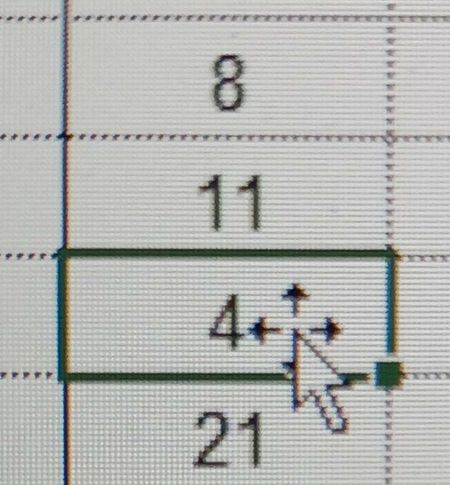
You're seeing the 4-headed arrow cursor when you hover over the border of a selected cell (here, the one with 11). That cursor means Excel is ready to drag and move the contents of the selected cell elsewhere.
If you click while that cursor is active, Excel assumes you want to move the contents of the selected cell (in this case 11) to wherever you click next — like into the cell with 4. That's why 11 “jumps” into the other cell.
Don't Click When the Cursor Looks Like This:
When you see this 4-headed arrow:
- Do NOT click — it will activate "move cell" mode.
Move the Mouse Away From the Border:
To select a different cell:
- Move your mouse into the middle of the cell, not on the border.
- When the cursor changes to a plain white cross (+), then click.
That will simply select the new cell without moving anything.
You can disable drag-and-drop entirely to avoid this mistake:
- Go to File → Options (or Excel → Preferences on Mac)
- Select Advanced
- Uncheck: “Enable fill handle and cell drag-and-drop”
- Click OK
This will stop Excel from ever letting you move cell contents with the mouse — great if you don’t use that feature and want peace of mind.
I hope I could help

You're seeing the 4-headed arrow cursor when you hover over the border of a selected cell (here, the one with 11). That cursor means Excel is ready to drag and move the contents of the selected cell elsewhere.
If you click while that cursor is active, Excel assumes you want to move the contents of the selected cell (in this case 11) to wherever you click next — like into the cell with 4. That's why 11 “jumps” into the other cell.
Don't Click When the Cursor Looks Like This:
When you see this 4-headed arrow:
- Do NOT click — it will activate "move cell" mode.
Move the Mouse Away From the Border:
To select a different cell:
- Move your mouse into the middle of the cell, not on the border.
- When the cursor changes to a plain white cross (+), then click.
That will simply select the new cell without moving anything.
You can disable drag-and-drop entirely to avoid this mistake:
- Go to File → Options (or Excel → Preferences on Mac)
- Select Advanced
- Uncheck: “Enable fill handle and cell drag-and-drop”
- Click OK
This will stop Excel from ever letting you move cell contents with the mouse — great if you don’t use that feature and want peace of mind.
I hope I could help