Forum Discussion

Can't print this document! Print preview not matching Page Layout or Page Break Preview
- Dec 22, 2025
Excel scales cells, but floating objects (charts) don’t scale the same way, so Print Preview no longer matches Page Layout / Page Break Preview.
This is not a PDF issue — it’s how Excel handles charts when printing.
- Stop using “Fit to X pages”
This is the #1 cause of layout breakage.
Go to:
Page Layout → Scale to Fit- Width: Automatic
- Height: Automatic
- Scale: 100%
Never use “Fit to 4 pages” when charts are involved.
Recommended layout strategy (for large reports)
Since you have 16 tables + charts + footer:
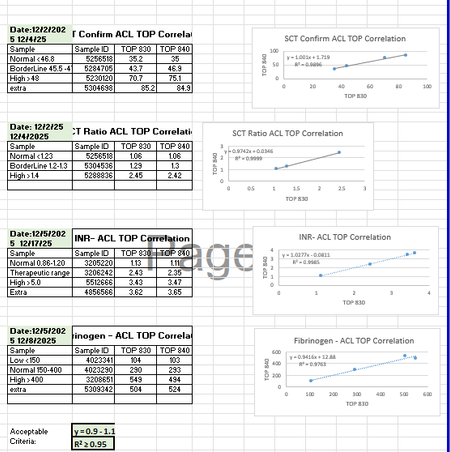
- Design 1 page = 4 blocks
- Each block:
- Table
- Chart aligned to the right
- Use consistent row heights
- Leave 2–3 empty rows between blocks
This gives Excel “buffer space” so objects don’t collide when printing.
Things that DO NOT work (and why)
Method
Why it fails
Fit to 1 / 4 pages
Breaks chart positioning
Page Layout view only
Doesn’t reflect print engine
Shrinking margins further
Doesn’t affect charts
PDF printer settings
Excel layout already broken
If you want a bulletproof alternative
For reports like this (tables + charts, multi-page):
- Create one worksheet per page
- Or copy each page into a temporary “Print” sheet
- Print all sheets together
This avoids Excel’s layout engine entirely.
Golden rules for Excel printing with charts
- Never rely on auto-scaling
- Lock charts to cells
- Use Page Break Preview as the source of truth
- Use manual page breaks
- Print at 100% scale
My answers are voluntary and without guarantee!
Hope this will help you.
Was the answer useful? Mark as best response and like it!
This will help all forum participants.

Excel scales cells, but floating objects (charts) don’t scale the same way, so Print Preview no longer matches Page Layout / Page Break Preview.
This is not a PDF issue — it’s how Excel handles charts when printing.
- Stop using “Fit to X pages”
This is the #1 cause of layout breakage.
Go to:
Page Layout → Scale to Fit
- Width: Automatic
- Height: Automatic
- Scale: 100%
Never use “Fit to 4 pages” when charts are involved.
Recommended layout strategy (for large reports)
Since you have 16 tables + charts + footer:
- Design 1 page = 4 blocks
- Each block:
- Table
- Chart aligned to the right
- Use consistent row heights
- Leave 2–3 empty rows between blocks
This gives Excel “buffer space” so objects don’t collide when printing.
Things that DO NOT work (and why)
Method | Why it fails |
Fit to 1 / 4 pages | Breaks chart positioning |
Page Layout view only | Doesn’t reflect print engine |
Shrinking margins further | Doesn’t affect charts |
PDF printer settings | Excel layout already broken |
If you want a bulletproof alternative
For reports like this (tables + charts, multi-page):
- Create one worksheet per page
- Or copy each page into a temporary “Print” sheet
- Print all sheets together
This avoids Excel’s layout engine entirely.
Golden rules for Excel printing with charts
- Never rely on auto-scaling
- Lock charts to cells
- Use Page Break Preview as the source of truth
- Use manual page breaks
- Print at 100% scale
My answers are voluntary and without guarantee!
Hope this will help you.
Was the answer useful? Mark as best response and like it!
This will help all forum participants.
 tuckerbDec 23, 2025Copper Contributor
Thank you so much, I think I will try doing multiple sheets then print them all together.