Forum Discussion

Cannot change some cells to date format in Excel
 May 21, 2026
Hi jlockley,
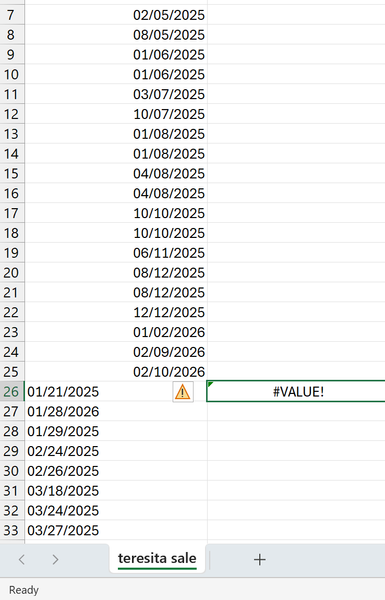
There is a high possibility that your computer's date system is in the dd/mm/yyyy format and if so, Excel does not recognize data in the mm/dd/yyyy format as dates. In this case, you can use this formula to extract dates in the dd/mm/yyyy format.
=LET(date, A26:A33, DATE(RIGHT(date, 4), LEFT(date, 2), MID(date, 4, 2)))HTH
IlirU

Great observation from the previous user. You’re right that the issue is a mismatch between the bank’s US format (mm/dd/yyyy) and your Excel’s date system (likely dd/mm/yyyy).
The formula they shared will work if every date is strictly mm/dd/yyyy with two-digit month, two-digit day, and leading zeros (e.g., 01/05/2025). However, it can break if there are single‑digit days/months (1/5/2025), spaces, or if the cell already contains a real Excel date.
Here’s a additional try with the formula you can use too. It assumes your first problematic date is in cell A1 (adjust the row number as needed):
=LET(
raw, TRIM(A1),
DATE(
VALUE(RIGHT(raw, 4)),
VALUE(LEFT(raw, FIND("/", raw) - 1)),
VALUE(MID(raw, FIND("/", raw) + 1, FIND("/", raw, FIND("/", raw) + 1) - FIND("/", raw) - 1))))
This works even if months/days have no leading zeros.
Even simpler:
Use Text to Columns — no formulas needed:
- Select the column with the dates
- Go to Data → Text to Columns → Delimited → uncheck all boxes → Next
- Under Column data format, choose Date: MDY → Finish
That forces Excel to read mm/dd/yyyy correctly in one click.