Forum Discussion

Calculation within official excel table (structured data)
- Jun 14, 2023
Hi Tegzi
Given you run 365. Does the following do it?:
Edited:
=LET(
  idx, INDEX([Value], SEQUENCE(ROW()-ROW(Table1[#Headers]))),
  flt, FILTER(idx, idx > 0),
  IFS(ISBLANK([@Value]),"", ROWS(flt)=1,[@Value], TRUE,AVERAGE(TAKE(flt,-2)))
)


To calculate the average of the two closest numbers in the "Value" column of Table1, you can use the following formula:
=AVERAGE(LARGE(A2:A10,ROW(A2:A10)-ROW(A2)+{0,1}))
This formula uses the LARGE function to retrieve the two largest values in the range A2:A10 based on their relative positions within the range. The ROW function is used to adjust the array constant {0,1} to match the number of rows in the range A2:A10.
Here's how the formula works:
- ROW(A2:A10)-ROW(A2) calculates the relative row numbers within the range A2:A10, starting from 0.
- {0,1} is an array constant representing the offsets from the current row.
- LARGE(A2:A10,ROW(A2:A10)-ROW(A2)+{0,1}) returns an array of the two largest values in the range based on the relative positions.
- AVERAGE(LARGE(A2:A10,ROW(A2:A10)-ROW(A2)+{0,1})) calculates the average of the two largest values.
Make sure to enter this formula in the appropriate cell of the "Calculation" column (e.g., B6) within Table1. The formula will adjust automatically based on the relative positions within the table.
Please note that if there are fewer than two non-empty values in the range, the formula may return an error or unexpected result.

Thanks for this, but it won't work. I tried this both with a non-structured data (non official excel table) as well as with structured data (official excel table, where your formula looks like this based on my previously defined table structure: =AVERAGE(LARGE([Value],ROW([Value])-ROW([@Value])+{0,1})).
Value is the header of column A (A1), i.e. the name of the column. This returns back the error #NUM!
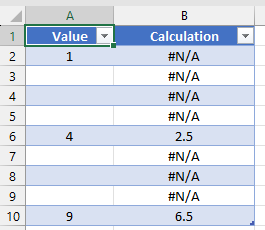
In the example I have values in column A2 (1), A6 (4) and A10 (9), the rest of the cells are empty.
So, with the right formula, I should read B6 = 4 (the average of 1 & 4), B10 = 6.5 (the average of 4 & 9).
Thanks for the initiative though.
- NikolinoDEJun 14, 2023Platinum Contributor
The "Value" is the header of column A (A1), you can modify the formula as follows:
=AVERAGE(LARGE(Table1[Value],ROW(Table1[Value])-ROW([@Value])+{0,1}))
This modified formula references the structured table name "Table1" and the column header "Value" to retrieve the values for the calculation.
Make sure to enter this formula in the appropriate cell of the "Calculation" column within your official Excel table.
If you are still experiencing issues or encountering errors, please provide more details about your table structure and any specific error messages you are receiving.
Please provide some additional information too: Excel version, operating system (win, mac, etc.), storage medium (Sharepoint, OneDrive, hard disk, etc.).
- TegziJun 14, 2023Copper Contributor@ NikolinoDE
unfortunately the same result. I use Win11, Office 365 version.
I get the same #NUM! error in all cells. I get the same error back with this =AVERAGE(LARGE([Value],ROW([Value])-ROW([@Value])+{0,1})). Result is #NUM! in each cell.