Forum Discussion

BORDERS USERFORM
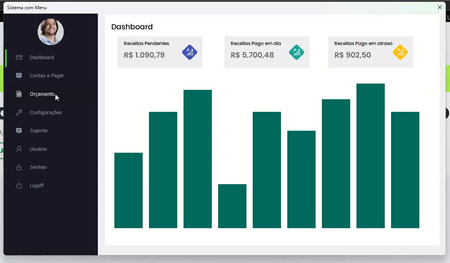

To add rounded corners to your UserForm, you can use the CreateRoundRectRgn and SetWindowRgn functions from the Windows API.
Add the following code at the top of your UserForm code module to declare the necessary API functions:
Private Declare PtrSafe Function CreateRoundRectRgn Lib "gdi32" ( _
ByVal nLeftRect As Long, ByVal nTopRect As Long, _
ByVal nRightRect As Long, ByVal nBottomRect As Long, _
ByVal nWidthEllipse As Long, ByVal nHeightEllipse As Long) As Long
Private Declare PtrSafe Function SetWindowRgn Lib "user32" ( _
ByVal hWnd As LongPtr, ByVal hRgn As Long, _
ByVal bRedraw As Boolean) As Long
=======================
Add the following code in the UserForm_Initialize event to set rounded corners:
Private Sub UserForm_Initialize()
Dim hRgn As Long
Dim radius As Long
radius = 20 ' Adjust this value to change the roundness of the corners
hRgn = CreateRoundRectRgn(0, 0, Me.Width * Screen.TwipsPerPixelX, Me.Height * Screen.TwipsPerPixelY, radius, radius)
SetWindowRgn Me.hWnd, hRgn, True
End Sub
***Adjust the radius variable to control the level of roundness ***
=========================
Please ensure Drop Shadow is Enabled: (check the below)
Private Declare PtrSafe Function SetClassLongPtr Lib "user32" Alias "SetClassLongPtrA" ( _
ByVal hwnd As LongPtr, _
ByVal nIndex As Long, _
ByVal dwNewLong As LongPtr) As LongPtr
Private Const CS_DROPSHADOW As Long = &H20000
Private Sub UserForm_Initialize()
Dim classLong As LongPtr
classLong = GetClassLongPtr(Me.hWnd, -26) ' GCL_STYLE
SetClassLongPtr Me.hWnd, -26, classLong Or CS_DROPSHADOW
End Sub
*** This code leverages the SetClassLongPtr function to add a shadow effect to the UserForm. ****
Tip:
Set your UserForm’s BackColor and Font properties in the VBA editor to match the modern look.
For a cleaner interface, adjust button colors and borders. You may also use custom icons or images to represent menu options.