Forum Discussion

Average Line in Clustered Column chart
 Jan 03, 2020
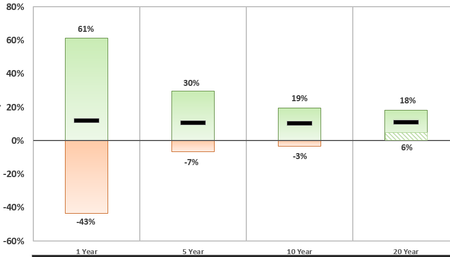
Riny_van_Eekelen Although no one may ever travel to this thread, I think I found a work-around! I re-selected my data, and then created a clustered column. Then, I left clicked on a bar>right click>"format data series">"Series Options"> Set "Series Overlap" to 100%>Change the average bar to the same fill and border color as the max bar> then change the border to the dash for added effect.
Riny_van_Eekelen thank you for your reply. This was my challenge in that I was hoping to remove the lines connecting the points. The goal would be for every stack (so in this case, the 4 different stacks) would have a black line spanning the width at each stack with a line over it.
Because the chart I'm making is dynamic, but will only be updated quarterly, my last resort would be to just insert a line over the chart and group them together.

Try again! Now I selected a transparent line with a "built-in marker", shaped as a horizontal black line.
- JohnnyBehindTheDueceJan 03, 2020Copper Contributor
Riny_van_Eekelen As it relates to my first post, I tried something very similar but the issue is that the line is massive in height (doesn't look that good for clients) and it doesn't cover the whole bar. I appreciate all your help with this!
- Riny_van_EekelenJan 03, 2020Platinum Contributor
One more try.
You can create your own line marker. I created a JGP of a narrow line and used that one. It's not the same with as the columns but you can fiddle around yourself and create marker that suits your exact needs.
- JohnnyBehindTheDueceJan 03, 2020Copper Contributor
Riny_van_Eekelen Although no one may ever travel to this thread, I think I found a work-around! I re-selected my data, and then created a clustered column. Then, I left clicked on a bar>right click>"format data series">"Series Options"> Set "Series Overlap" to 100%>Change the average bar to the same fill and border color as the max bar> then change the border to the dash for added effect.