Forum Discussion

Auto populating new rows of data based on existing rows of data
- Jun 16, 2022
i
There are multiple ways to do this: Using a macro; using a Lamda helper function with Lambda; using the new text manipulation functions available to 365 Insider Beta users; using Power Queary; and a bunch of other methods as well.
Power Query is incredibly powerful, and very easy to pick up. given an example. I hope this helps.
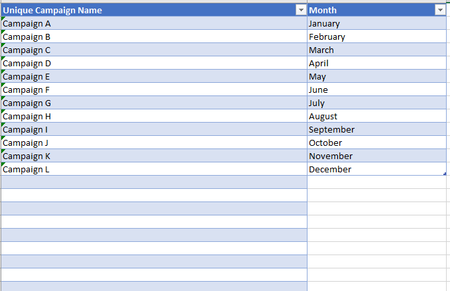
- Name the Campaign Table: tEvents
- Name the Month Table: tMonths
- Add both tables to Power query:
- Click in tEvent> Data tab> From Table or Range.
- In the Power Queary Editor file tab> Close and Load> Close and Load to> Only create connection.
- Right click in tMonth> Get Data From Table or Range.
- In the list of queries in the left section of the PQ Editor, click tEvents to select it, Add Column tab> Conditional Column>
- New Column Name: Column 1
- Column Name: Event
- Operator: equals
- Value: null
- Output: 0
- Else: 1
- Click OK.
A new Custom column with 0 is added to the tEvent table.
- Click on tMonths, Transform tab>Transpose
The table rows become columns with the names Column1-12
- with tMonths still active, Add column tab> Index Column> From 0
An Index column is added on the far right of tMonths with the row value 0.
- Select tEvents, click the Custom column’s field header to highlight the column, then click on the ABC123 icon in the header> Decibel Number
ABC123 icon changes to 1.2 denoting the columns data type is now a Decimal Number.
- Home tab> Merge Quearies as New
- In the Merge window select the Custom column by clicking on the column header.
- Select tMonth from the pull-down menu and scroll to the far right, select the Index column.
- Keep "Left Outer" in the Join pull down below> click OK.
A new table called Merge1 is created with both columns form tEvent and a new tMonth column with Table listed as the value of each row.
- tMonth column, Click the double arrow filter icon on the right side of the row header> Deselect Index and the Use Column name boxes > OK
tMerge has 12 new columns with a single month as the values of each row.
- Select the Custom Colum by clicking in the header, right click the header> Remove
- Select the Event column by clicking in the header, right click the header> Unpivot other columns.
The Month columns are now 12 rows for each event.
- Select and remove the Attribute column.
- Click the ABC123 icon in the Value column header> Text
- (Optional) Double click the column name value to replace with "Month"
- (Optional) Double click "Merge1" in the queries sidebar and rename to "tEventMonths"
- File tab> Close and Load to > Only create connection > OK
dYou’ll be returned to Excel. a sidebar on the right called @ueries and Connections with a list of the Power Query tables.
- right click tMerge (or tEventsMonths)> Load to> Table> Create new worksheet > OK
- The table is added to a new worksheet named Merge1 (or tEventMonth)
When new Campaigns are added to the tEvents table.
- Data tab> Refresh All

i
There are multiple ways to do this: Using a macro; using a Lamda helper function with Lambda; using the new text manipulation functions available to 365 Insider Beta users; using Power Queary; and a bunch of other methods as well.
Power Query is incredibly powerful, and very easy to pick up. given an example. I hope this helps.
- Name the Campaign Table: tEvents
- Name the Month Table: tMonths
- Add both tables to Power query:
- Click in tEvent> Data tab> From Table or Range.
- In the Power Queary Editor file tab> Close and Load> Close and Load to> Only create connection.
- Right click in tMonth> Get Data From Table or Range.
- In the list of queries in the left section of the PQ Editor, click tEvents to select it, Add Column tab> Conditional Column>
- New Column Name: Column 1
- Column Name: Event
- Operator: equals
- Value: null
- Output: 0
- Else: 1
- Click OK.
A new Custom column with 0 is added to the tEvent table.
- Click on tMonths, Transform tab>Transpose
The table rows become columns with the names Column1-12
- with tMonths still active, Add column tab> Index Column> From 0
An Index column is added on the far right of tMonths with the row value 0.
- Select tEvents, click the Custom column’s field header to highlight the column, then click on the ABC123 icon in the header> Decibel Number
ABC123 icon changes to 1.2 denoting the columns data type is now a Decimal Number.
- Home tab> Merge Quearies as New
- In the Merge window select the Custom column by clicking on the column header.
- Select tMonth from the pull-down menu and scroll to the far right, select the Index column.
- Keep "Left Outer" in the Join pull down below> click OK.
A new table called Merge1 is created with both columns form tEvent and a new tMonth column with Table listed as the value of each row.
- tMonth column, Click the double arrow filter icon on the right side of the row header> Deselect Index and the Use Column name boxes > OK
tMerge has 12 new columns with a single month as the values of each row.
- Select the Custom Colum by clicking in the header, right click the header> Remove
- Select the Event column by clicking in the header, right click the header> Unpivot other columns.
The Month columns are now 12 rows for each event.
- Select and remove the Attribute column.
- Click the ABC123 icon in the Value column header> Text
- (Optional) Double click the column name value to replace with "Month"
- (Optional) Double click "Merge1" in the queries sidebar and rename to "tEventMonths"
- File tab> Close and Load to > Only create connection > OK
dYou’ll be returned to Excel. a sidebar on the right called @ueries and Connections with a list of the Power Query tables.
- right click tMerge (or tEventsMonths)> Load to> Table> Create new worksheet > OK
- The table is added to a new worksheet named Merge1 (or tEventMonth)
When new Campaigns are added to the tEvents table.
- Data tab> Refresh All
 booknerd_87Jun 20, 2022Copper ContributorThank you both so much! I actually ended up taking a different direction here, but I do like the Power Query option and will keep that in mind if/when I decide to go that route. Power Query is new to me, but it seems like it has some great functions I should take advantage of. Thank you again!