Forum Discussion

Auto fill Department column
- Nov 12, 2024
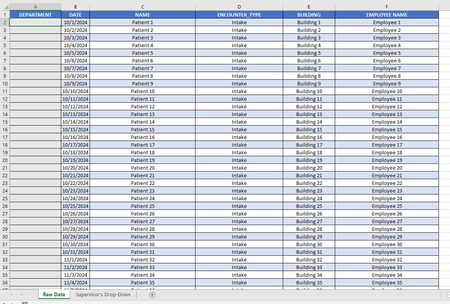
Thank you. On the RawData sheet, the names are Employee 1, Employee 2 etc., but on the SupervisorsDropdown, they are Employee Name 1, Employee Name 2, etc.
The formula didn't take this discrepancy into account. I changed the names on the RawData sheet, and now it works:
(I modified the formula to return an empty string if there is no match).
See the attached version.

If that did not help:
Could you attach a small sample workbook demonstrating the problem (without sensitive data), or if that is not possible, make it available through OneDrive, Google Drive, Dropbox or similar?

Good morning Hans,
Attached is the actual file I'm using to get this issue resolved. this is a generic file the real file has sensitive information, but the columns and row description are identical. hope this helps.
- HansVogelaarNov 12, 2024MVP
Thank you. On the RawData sheet, the names are Employee 1, Employee 2 etc., but on the SupervisorsDropdown, they are Employee Name 1, Employee Name 2, etc.
The formula didn't take this discrepancy into account. I changed the names on the RawData sheet, and now it works:
(I modified the formula to return an empty string if there is no match).
See the attached version.
- MartinDeLamoraNov 12, 2024Copper Contributor
Hi Hans,
I inserted this formula in my real Raw Data file, and it worked perfectly.
thank you for all your help.