Forum Discussion

Danielv310
Oct 04, 2020Copper Contributor
Array formula
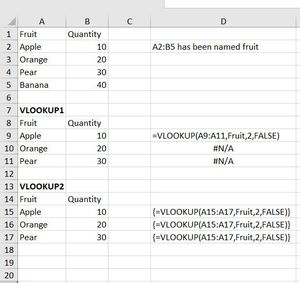
I understand the array formulas since 2018 on have changed so in my example below, I can type the array formula =VLOOKUP(A9:A11,Fruit,2,FALSE) into cell B9 hit enter and Excel will perform the same t...

Rajesh_Sinha
Oct 04, 2020Iron Contributor
Danielv310 ,,
Let me explain the real mechanism, that how the formula works:
- Cell E3 has formula:
=VLOOKUP($D$3:$D$5,Fruit,2,FALSE)
- Extract expected values, But in cell E6 returns #VALUE error,, cozz E6 is out of the INPUT range D3:D5.
- To avoid this I've used IFERROR in cell F3, also used cell by cell method:
=IFERROR(VLOOKUP(D3,Fruit,2,FALSE),"")
Since D3:D5 is identical to A3:A4, Excel reads correct value and returns quantities.
- Now check VLOOKUP 2,, order has been changed & formula in E9 returns quantity along with @#NA and #VALUE error, which has been handled by IFERROR with formula in F9.
Therefore using cell by cell method, instead of a Range as INPUT is always better and wise.
Now let me analyse the core issue, that how do get array formula in All Cells, in your sheet B15:B17 and in my attached sheet G16:G18.
- Check VLOOKUP 3, cell E16 has array formula,
{=VLOOKUP($D$16:$D$18,Fruit,2,FALSE)}
and if you drag it down returns same quantity 10.
- Reason is in every cell formula only read first cell in range $D$16:$D$18.
- If you alter the formula and use RELATIVE Reference and drag, you get correct quantities, check formula in cell F16.
{=VLOOKUP(D16:D18,Fruit,2,FALSE)}
Solution:
If you need array formula in all cell,,
- Write formula in cell G16, finish with Ctrl+Shift+Enter , fill down.
- Select G16:G18, press F2 and finish with Ctrl+Shift+Enter.
Adjust cell references in the formula as needed.
Check the attached file for formula details.